
Want to send Praise straight to your chats? Here’s how to integrate My.Drewberry’s Praise with Teams.
Why Integrate Praise With Teams?
We’re all about spreading the love, which is why we’ve made it super easy to sync your My.Drewberry Praise with Microsoft Teams. With this integration, employees don’t need to log in to the platform to see their Praise, they’ll be directly notified from the assigned Teams chat.
Heads up 👋
Microsoft has retired the old “Connectors” method for Teams. If you set up your Praise integration before May 2026 using Connectors, it will have stopped working. Just follow the steps below to reconnect using the new Workflows app.
How To Do It
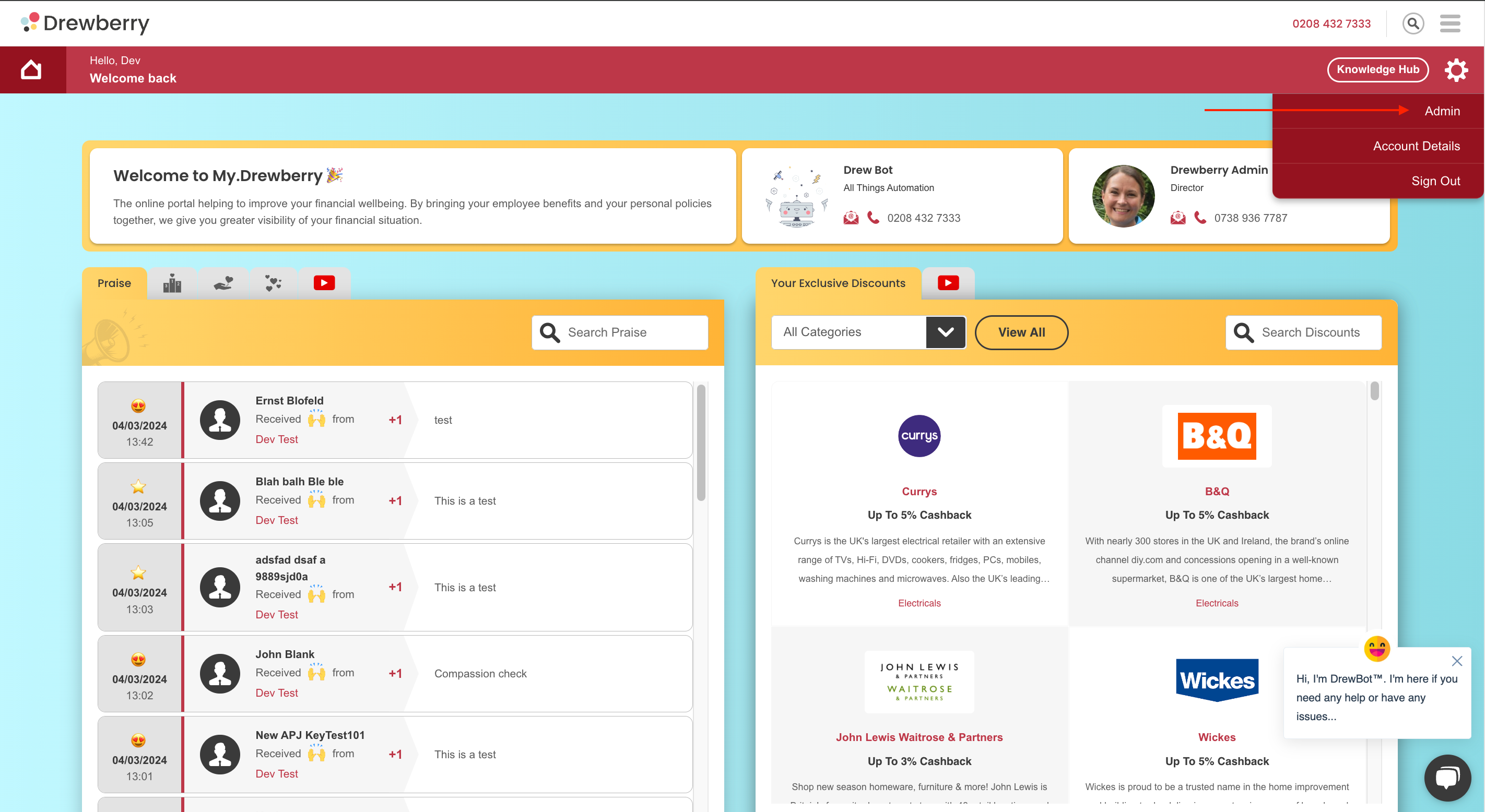
Step 1: Go To Your My.Drewberry Admin
Log in to your My.Drewberry portal and you’ll see the Praise card on your dashboard.
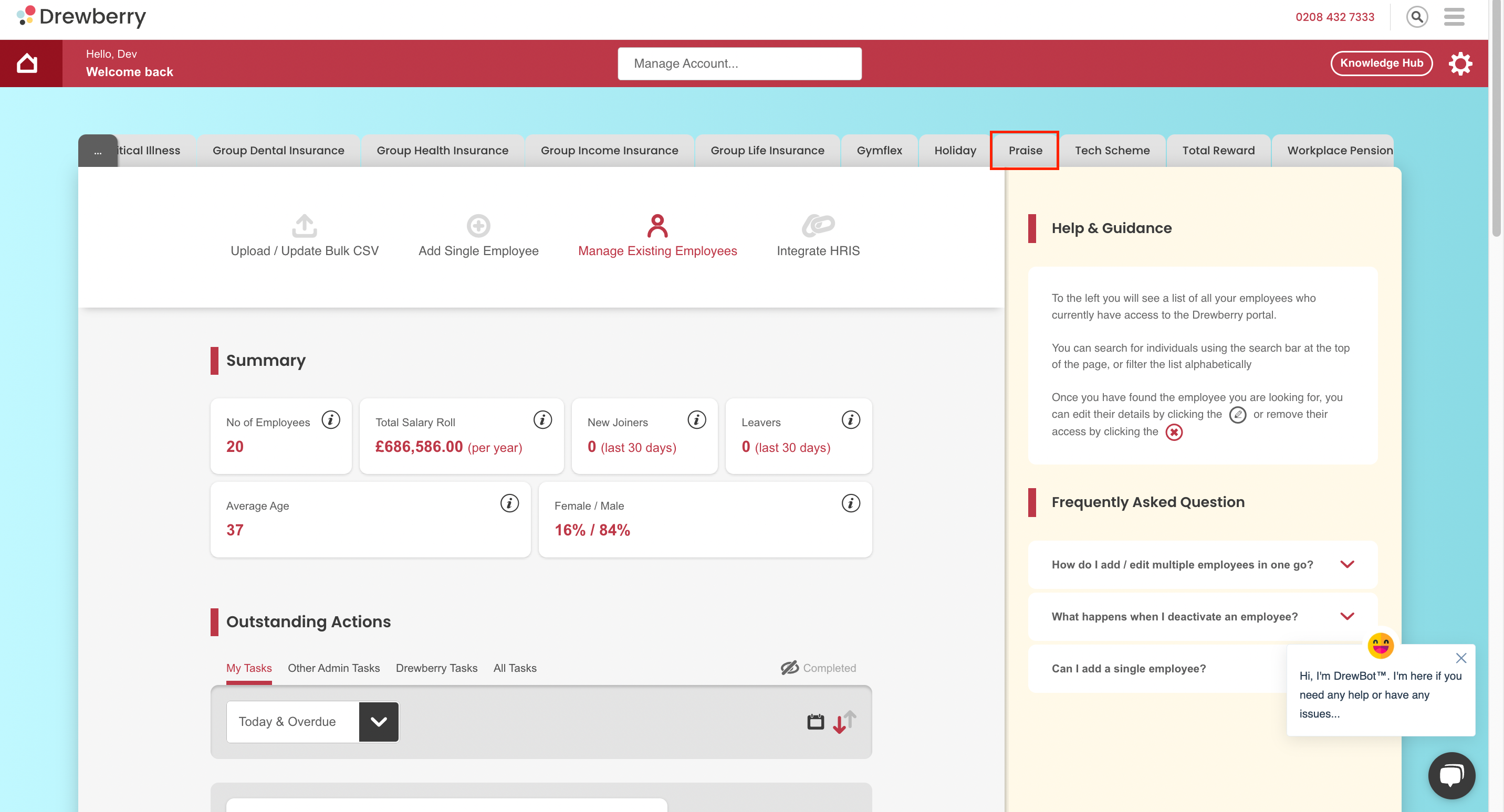
Step 2: Find Your “Praise” Tab
Once in your My.Drewberry Admin Centre, find your “Praise” tab and click it.
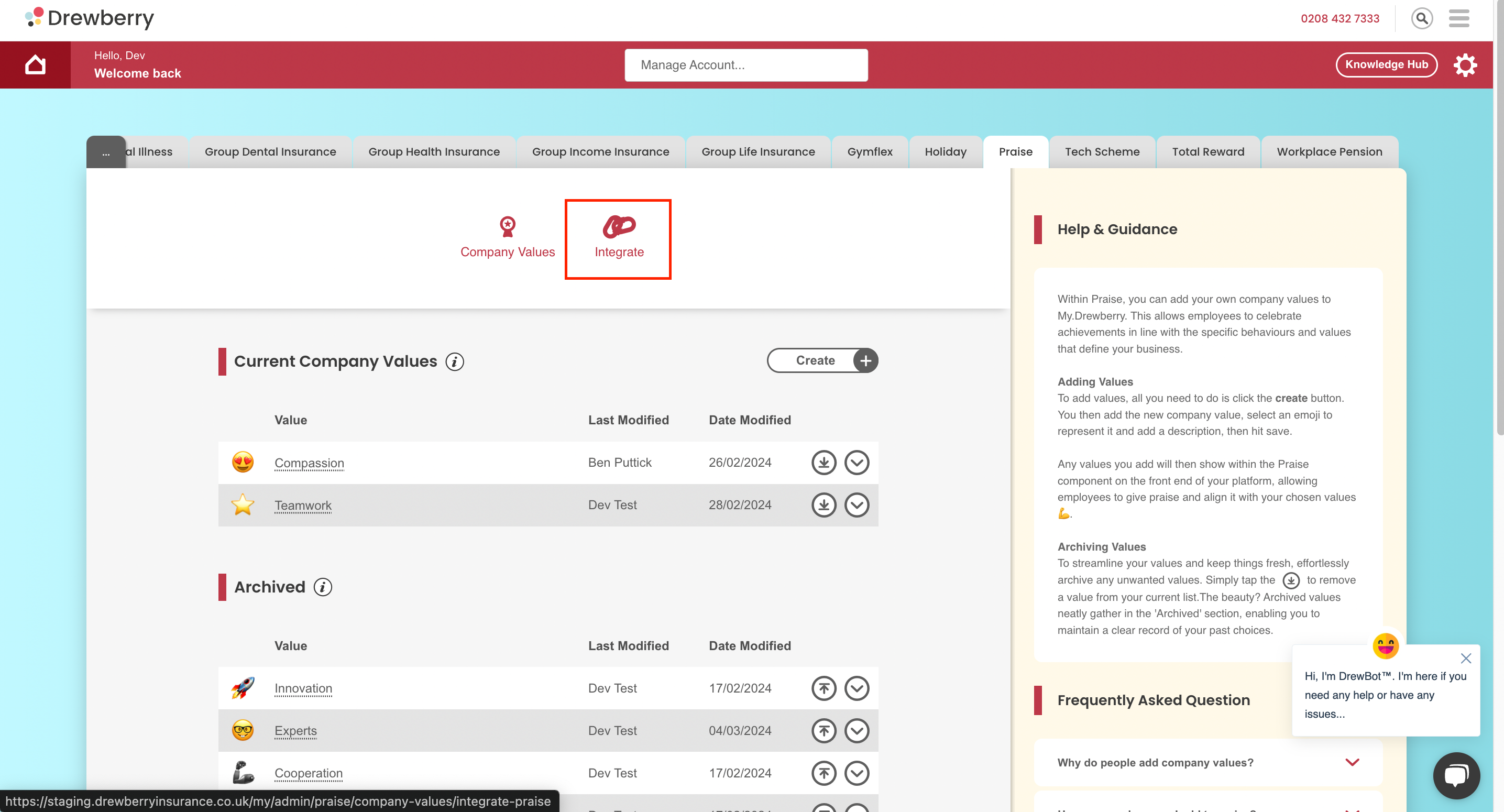
Step 3: Click The “Integrate” Icon
Once you are in the ‘Praise’ tab, select the “Integrate Icon”.
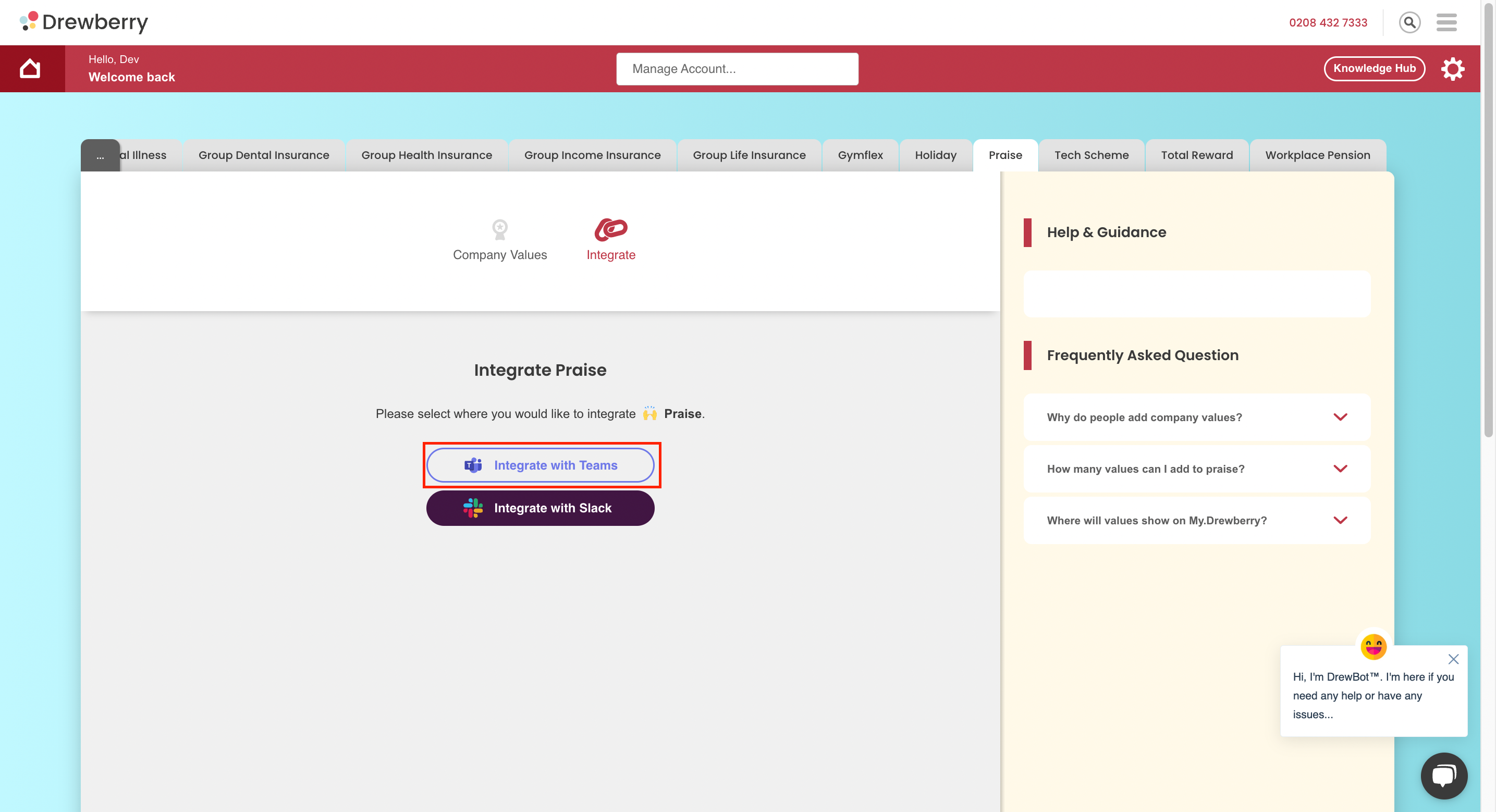
Step 4: Click “Integrate With Teams”
To Integrate with Microsoft Teams, select the “Integrate with Teams” button.
Step 5: Follow The Instructions / Watch The Video
To make the integration work, you’ll need to give us a Webhook URL from Teams, plus the name of your Teams channel. Here’s how to get them:
- Open Microsoft Teams and go to the channel where you want your Praise to appear (you might want to set up a whole new channel, just for the good vibes)
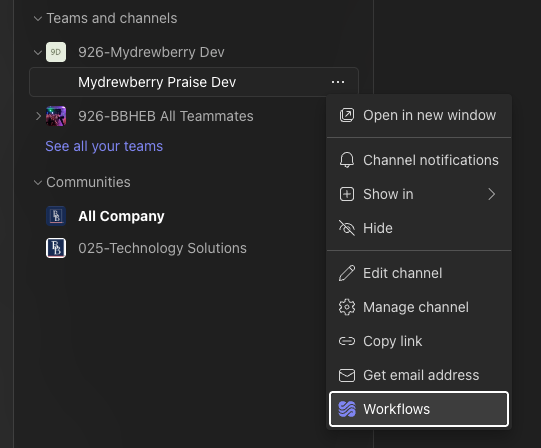
- Click the ••• (More options) button next to the channel name and select Workflows
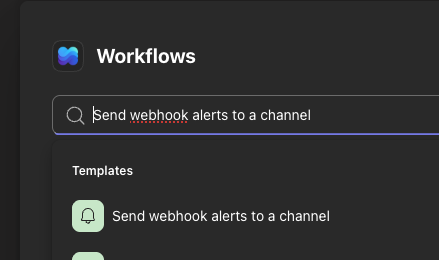
- Choose the template “Send webhook alerts to a channel”. Depending on your organisation’s setup, this may appear as “Post to a channel when a webhook request is received”
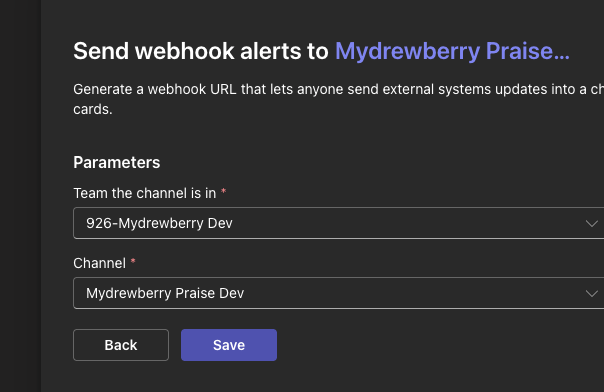
- Sign in if you’re prompted to, then confirm the team and channel you want to use
- Click Add workflow
Can’t see “Workflows”? 🤔
If the Workflows option doesn’t appear in your channel menu, your organisation’s IT administrator will need to allow the Workflows app for your business. Give them a nudge and they’ll be able to switch it on for you.
Step 6: Copy Your Webhook URL
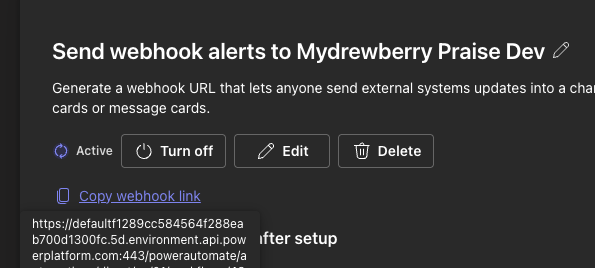
On the confirmation screen, you’ll see your Webhook URL. Copy it, this is what connects Praise to your channel.
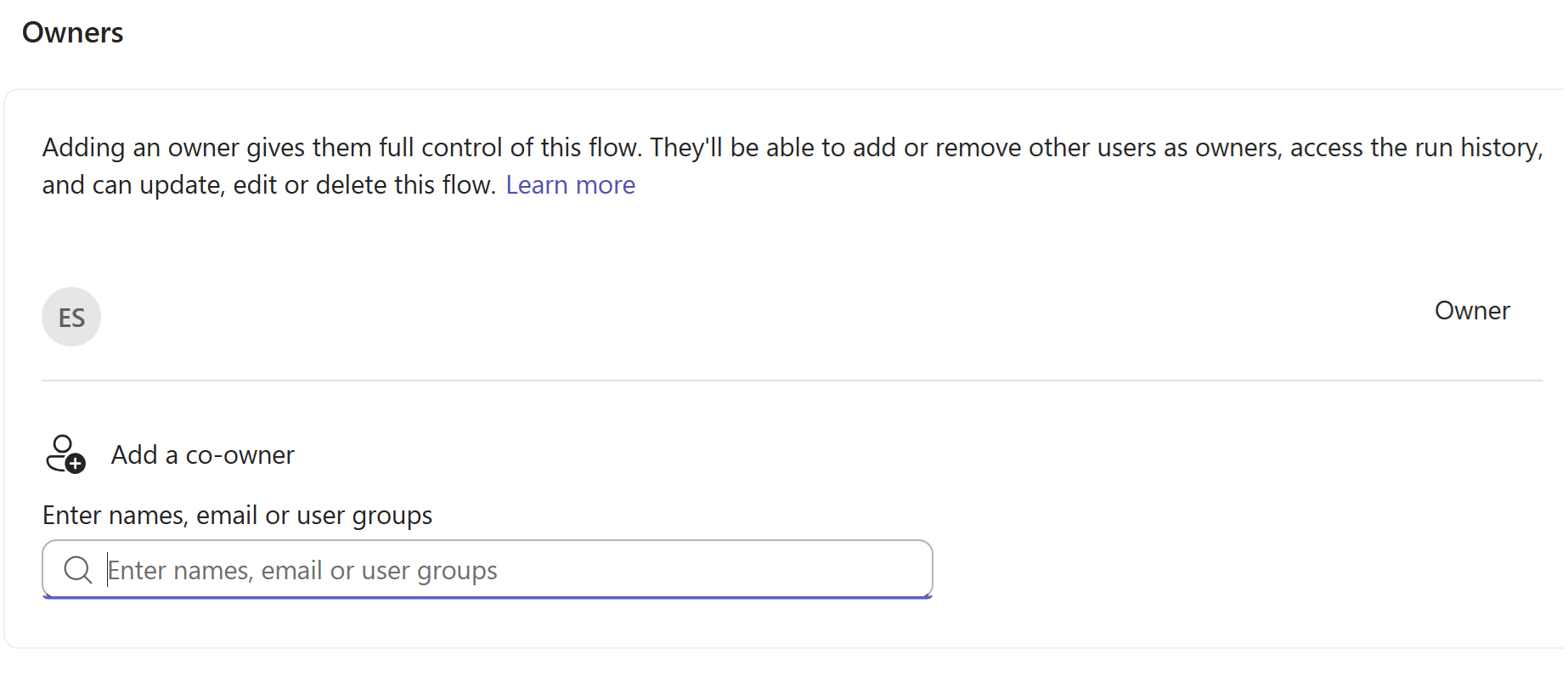
Step 7: Add A Co-Owner Before You Close
Don’t close that screen just yet, scroll down a little and you’ll see the option to add a co-owner.
Your new workflow belongs to whoever created it. If that person ever leaves your organisation, the workflow is switched off and Praise messages quietly stop arriving with no warning.
To avoid this, add a colleague as a co-owner:
- Open the Workflows app in Teams
- Find your Praise workflow and click Edit
- Click Share and add a colleague
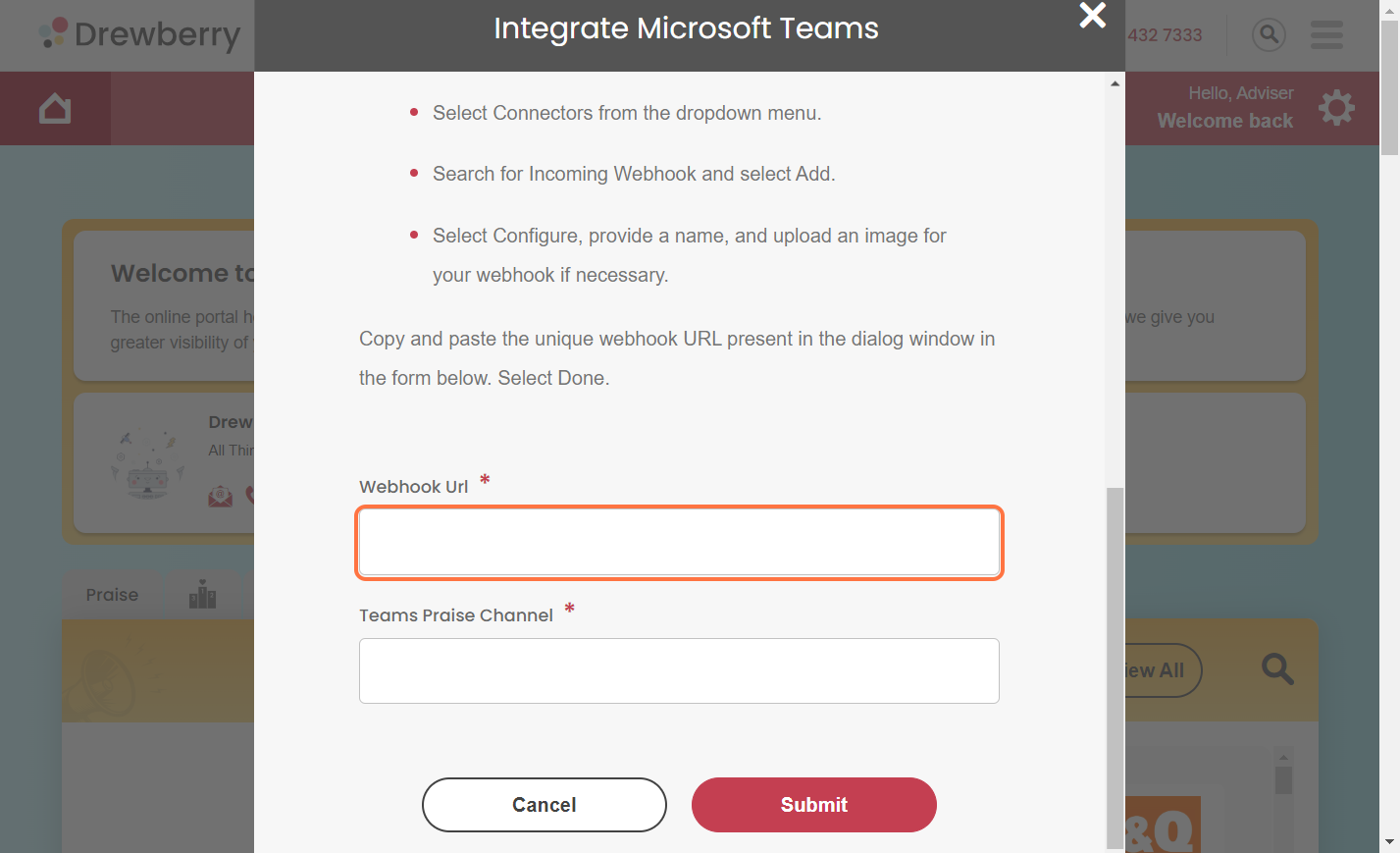
Step 8: Enter Your Webhook URL And Channel Name
Head back to your My.Drewberry portal and give us the Webhook URL you copied, along with the name of your Teams channel.
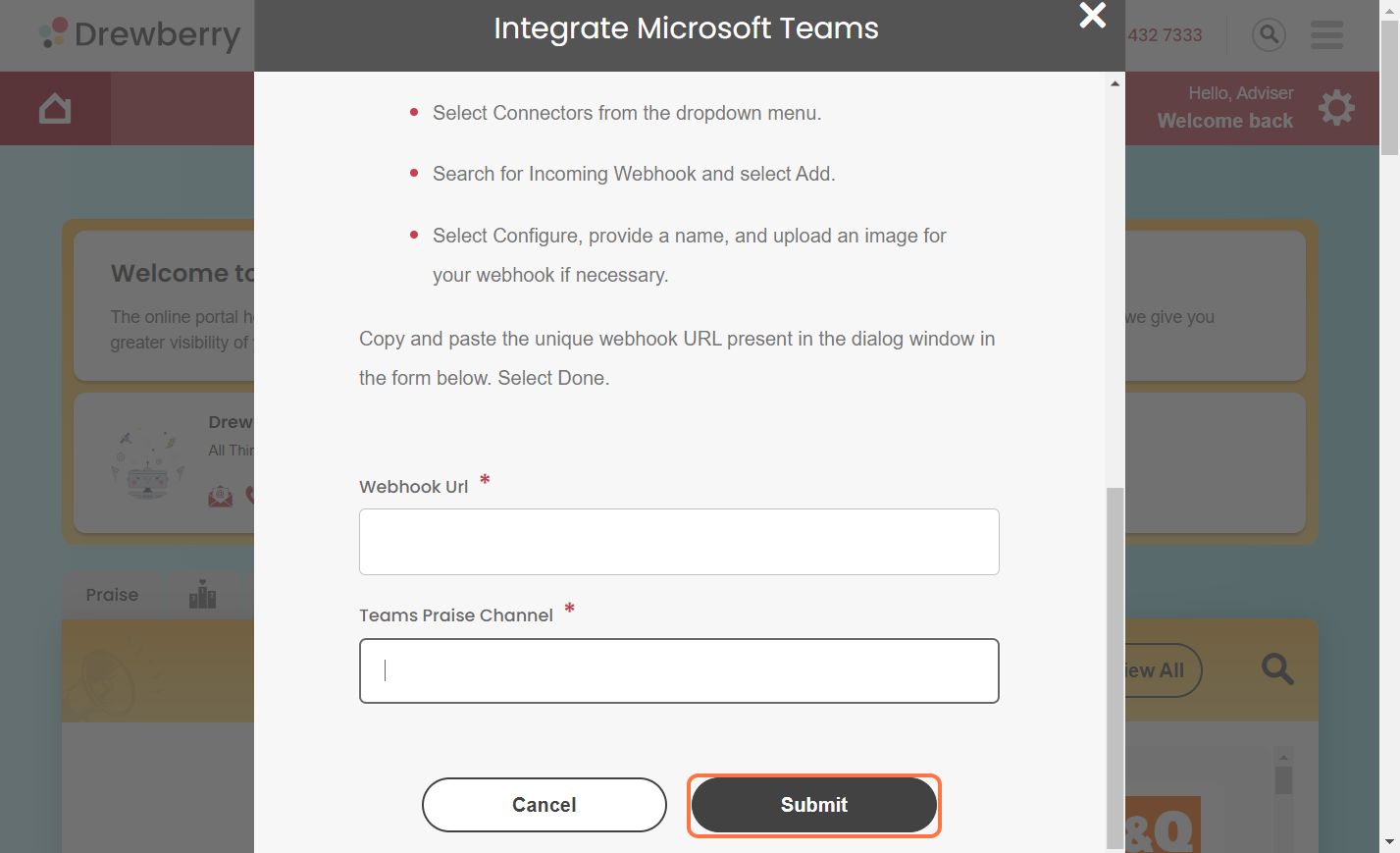
Step 9: Submit
You can then hit “Submit” and you’re ready to go! Your employees’ praise will now be sent directly to Teams, as well as within My.Drewberry.
One small difference 💬
Praise messages now arrive via the Teams Workflows bot, so they’ll look slightly different to before. The custom name and image that the old method allowed aren’t supported any more but the Praise itself is exactly the same.
Disconnecting Praise from Teams
Changed your mind, or moving Praise to a different channel? There are two steps — do both, or the connection is only half removed.
Prefer to watch? Here’s a quick walkthrough: Disconnecting Praise from Teams
- In My.Drewberry: go to your Admin Centre, then Benefits, then Praise. Click the “Integrate” icon and select Deactivate.
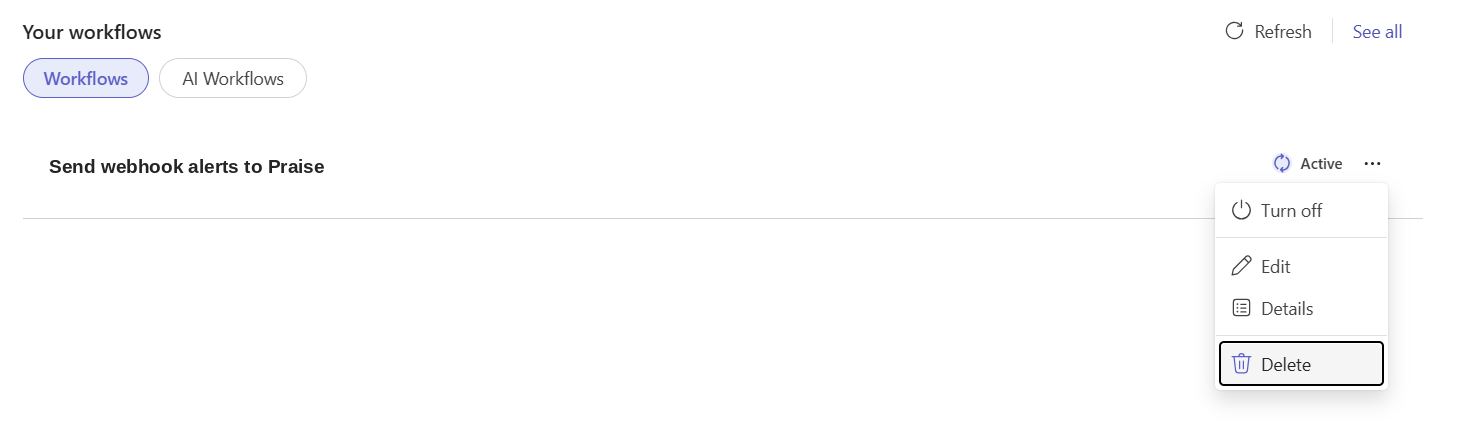
- In Teams: open the Workflows app, go to Your workflows, find your Praise workflow, click the ••• button and select Delete.
That’s it, Praise will stop posting to your channel straight away.
👉 Want to learn more about Praise? Find out more here.