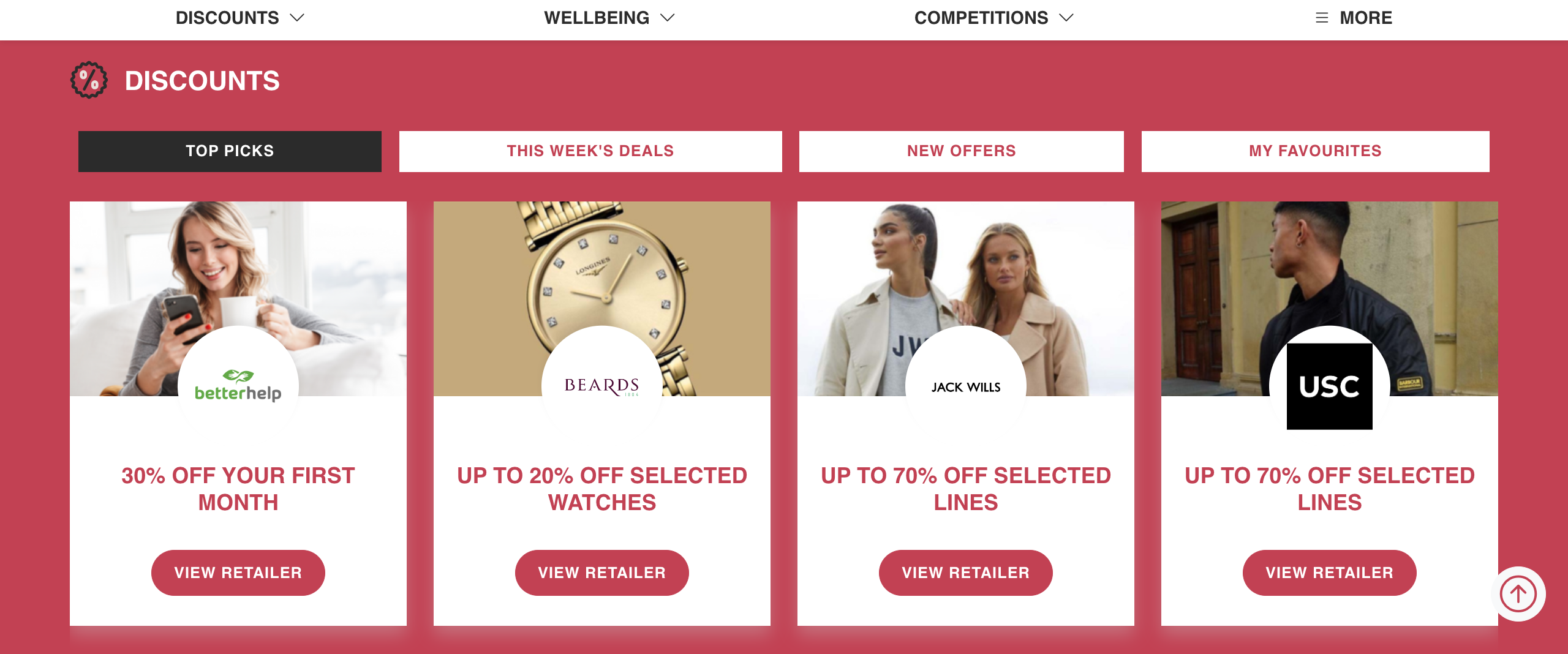
Here’s how to download the Retail Discounts app, so you can make the most of your retail discounts on the go.
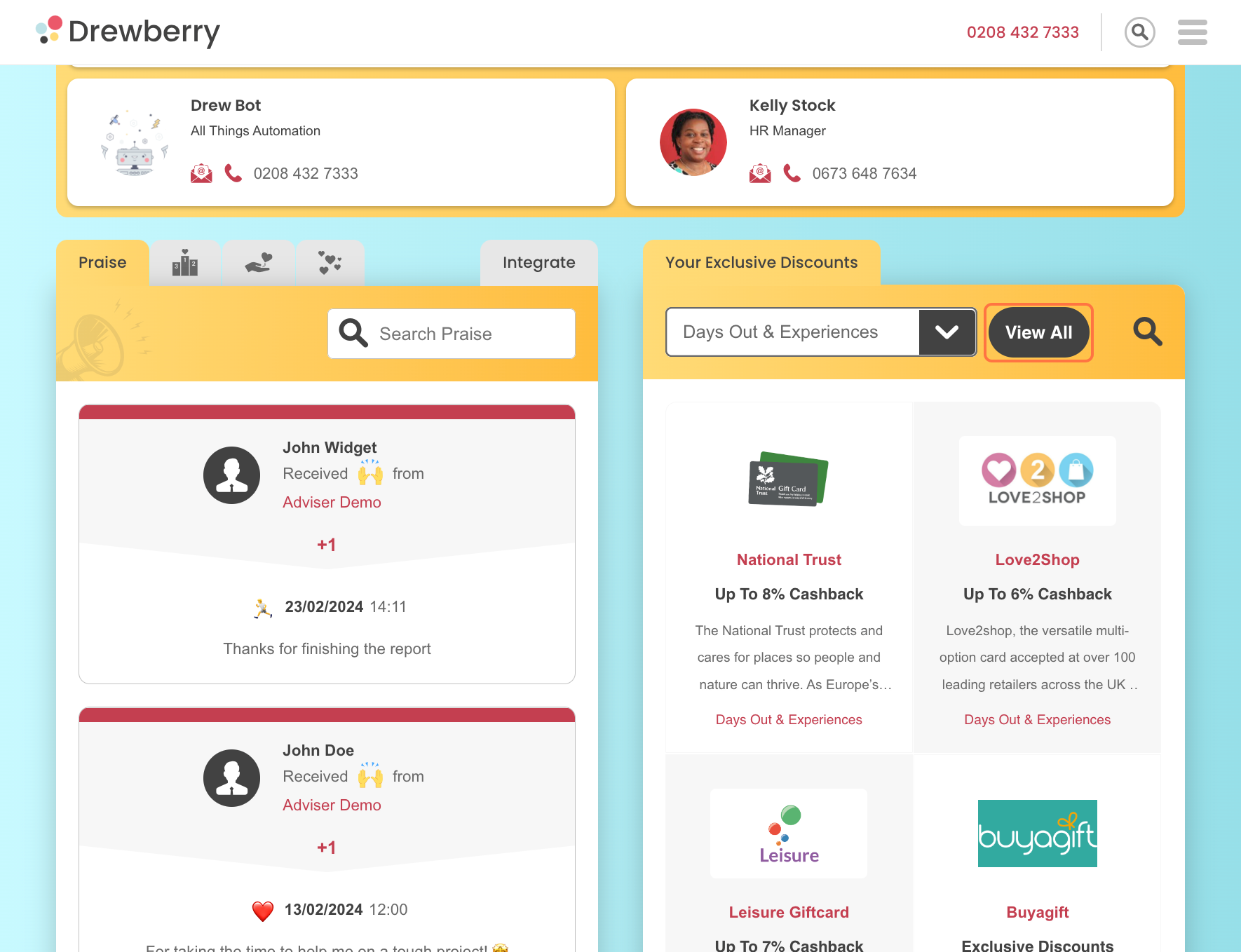
Step 1: Go To “Exclusive Discounts”
Your Discounts overview is the second card on your dashboard when you log in to My.Drewberry. To download the discounts app, click “View All”. This will take you to the main discount hub.
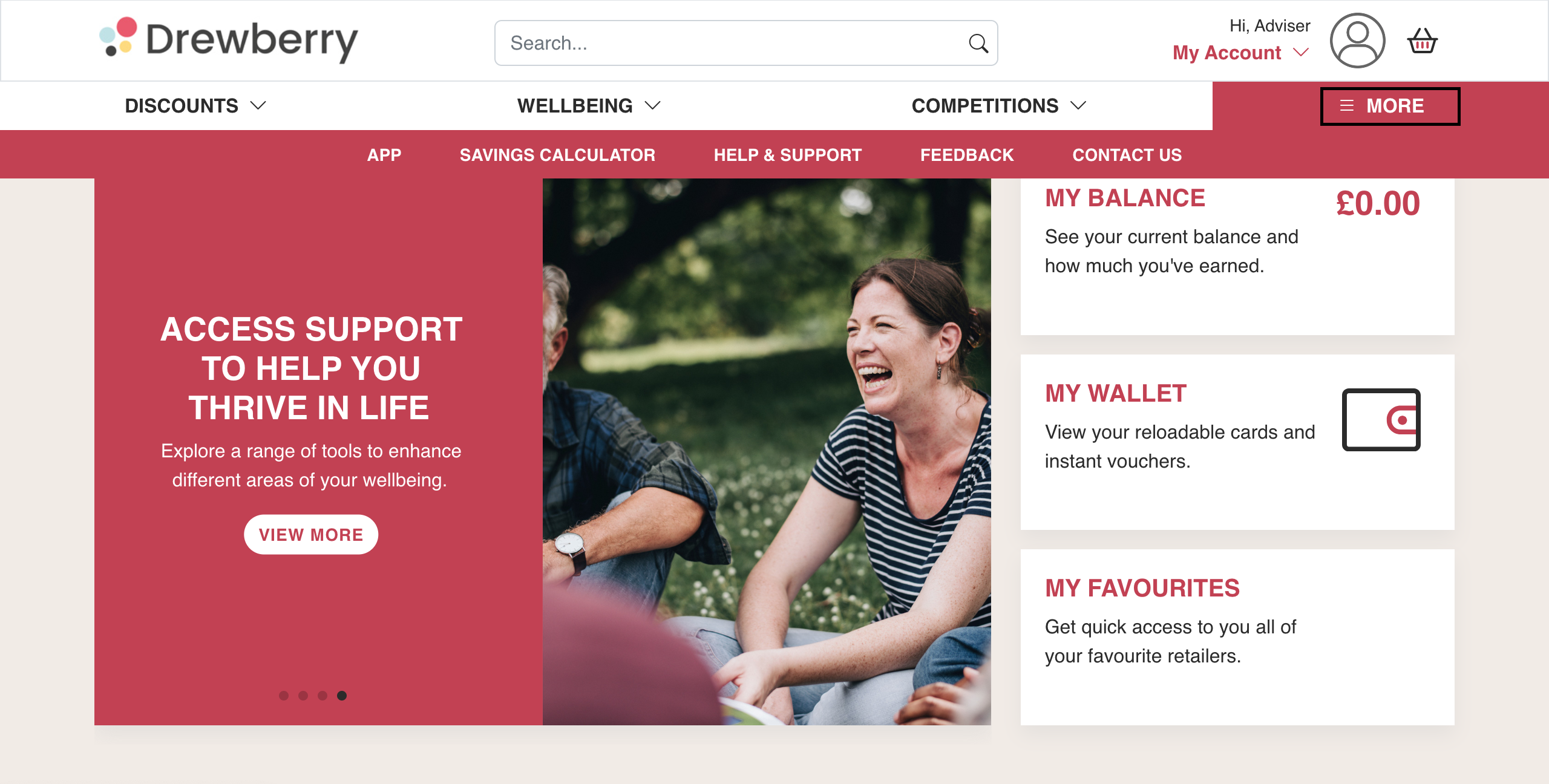
Step 2: Find The App In “Boostworks”
To download the app, click “More”. Then click “App”.
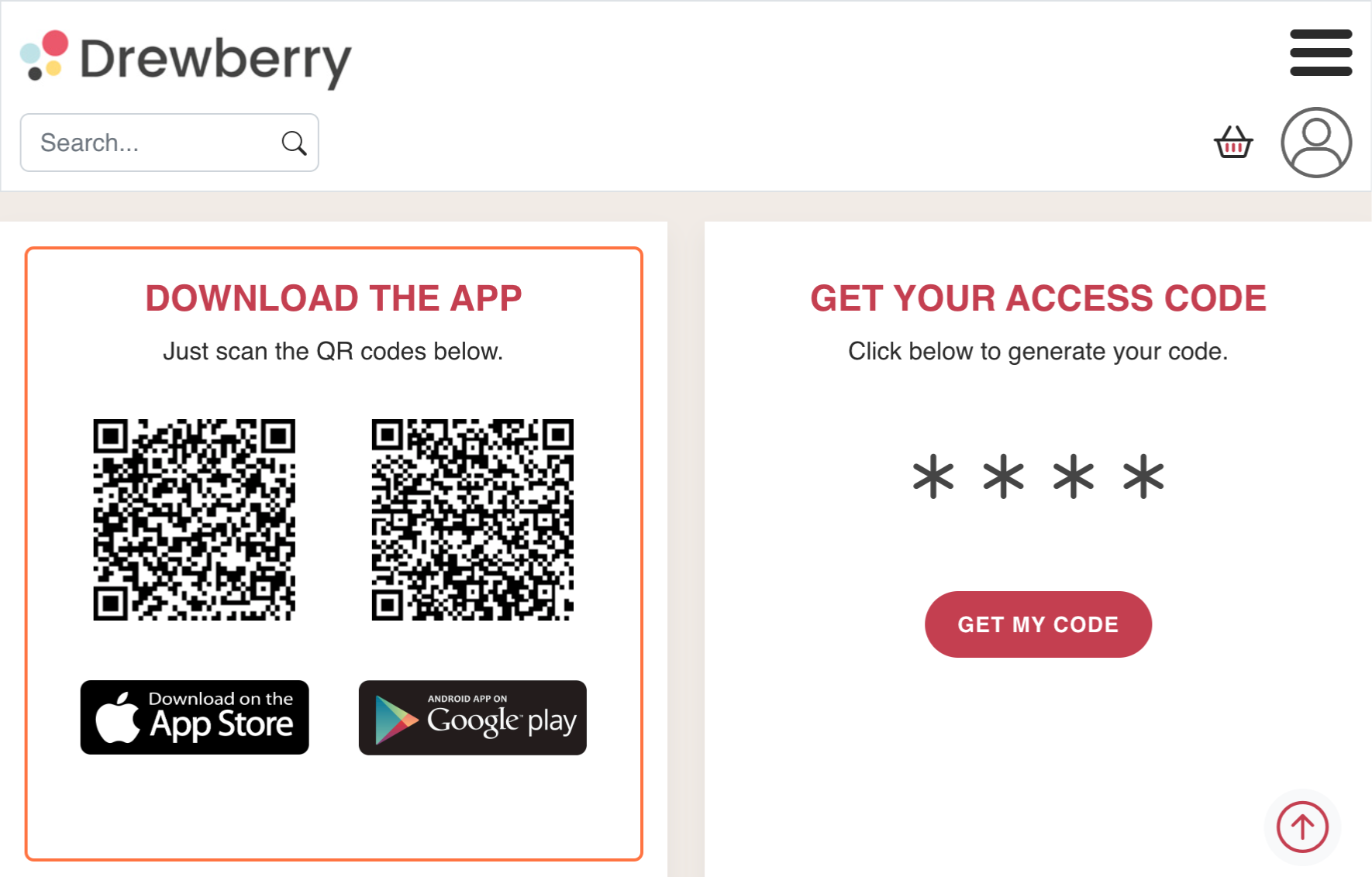
Step 3: Download The App Via QR Code
Using the QR codes, download your Retail Discounts App either on iPhone or Android. Make sure to scan the right code for your device.
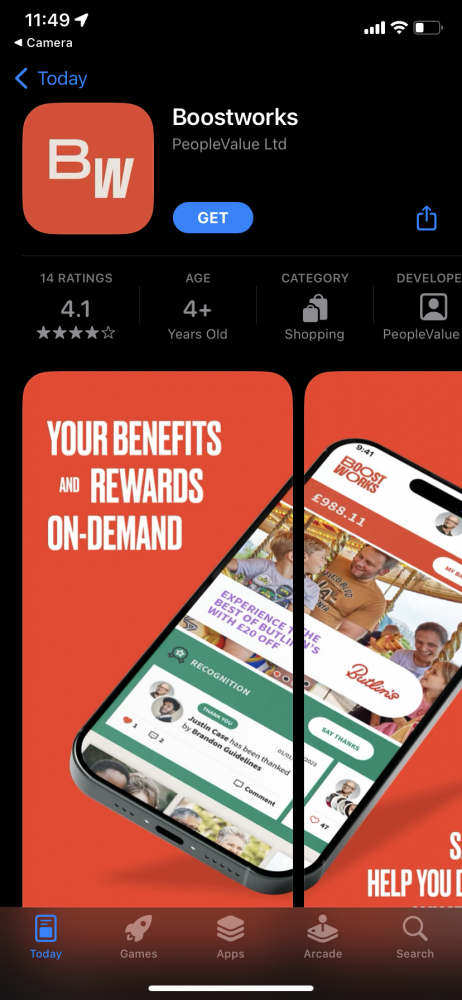
Step 4: Install Boostworks App
Once in the app store install the Boostworks app on your phone
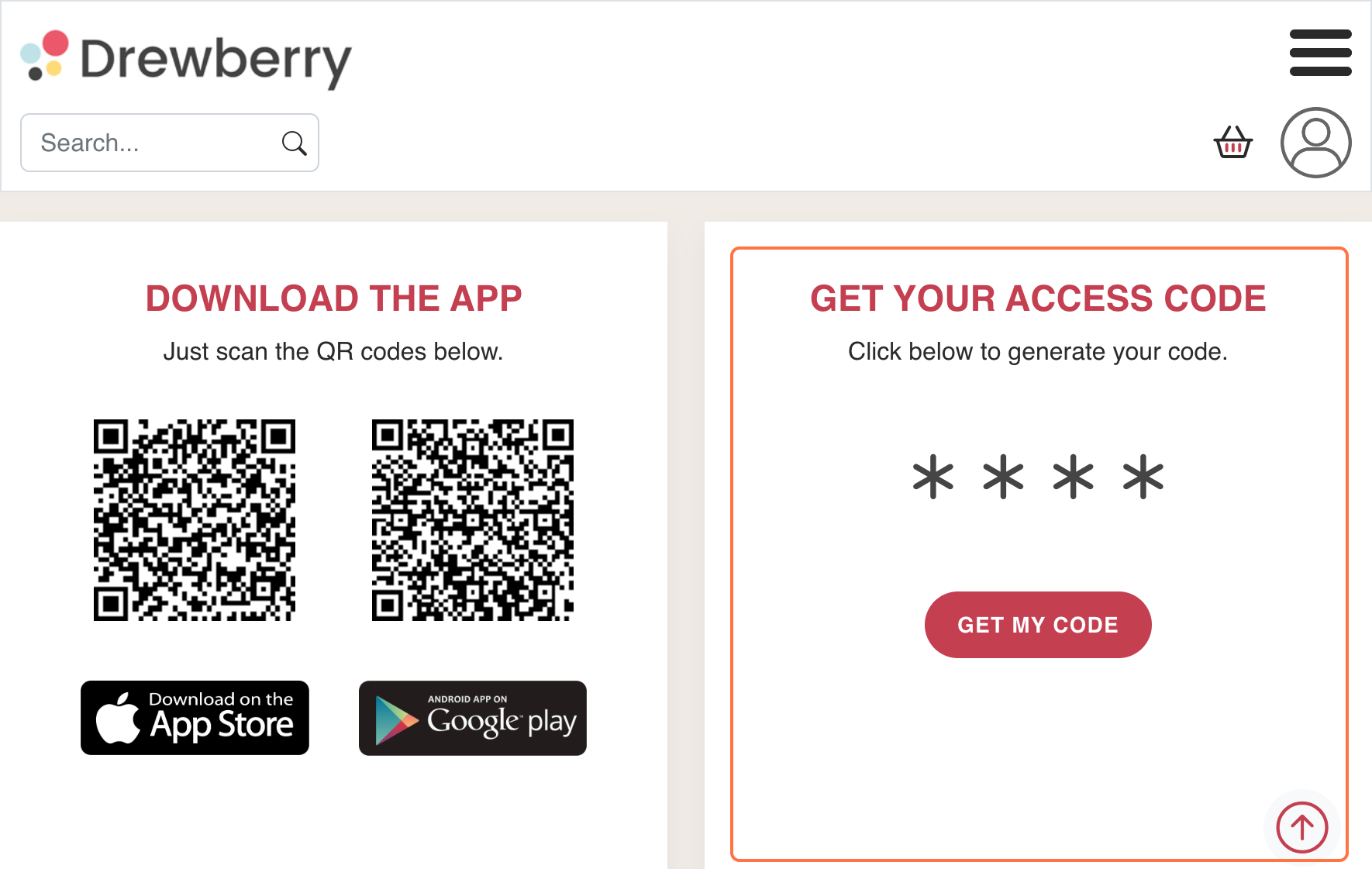
Step 5: Get Your Access Code
Once downloaded on your device, go back to the Discounts website and get your access code by clicking “Get My Code”.
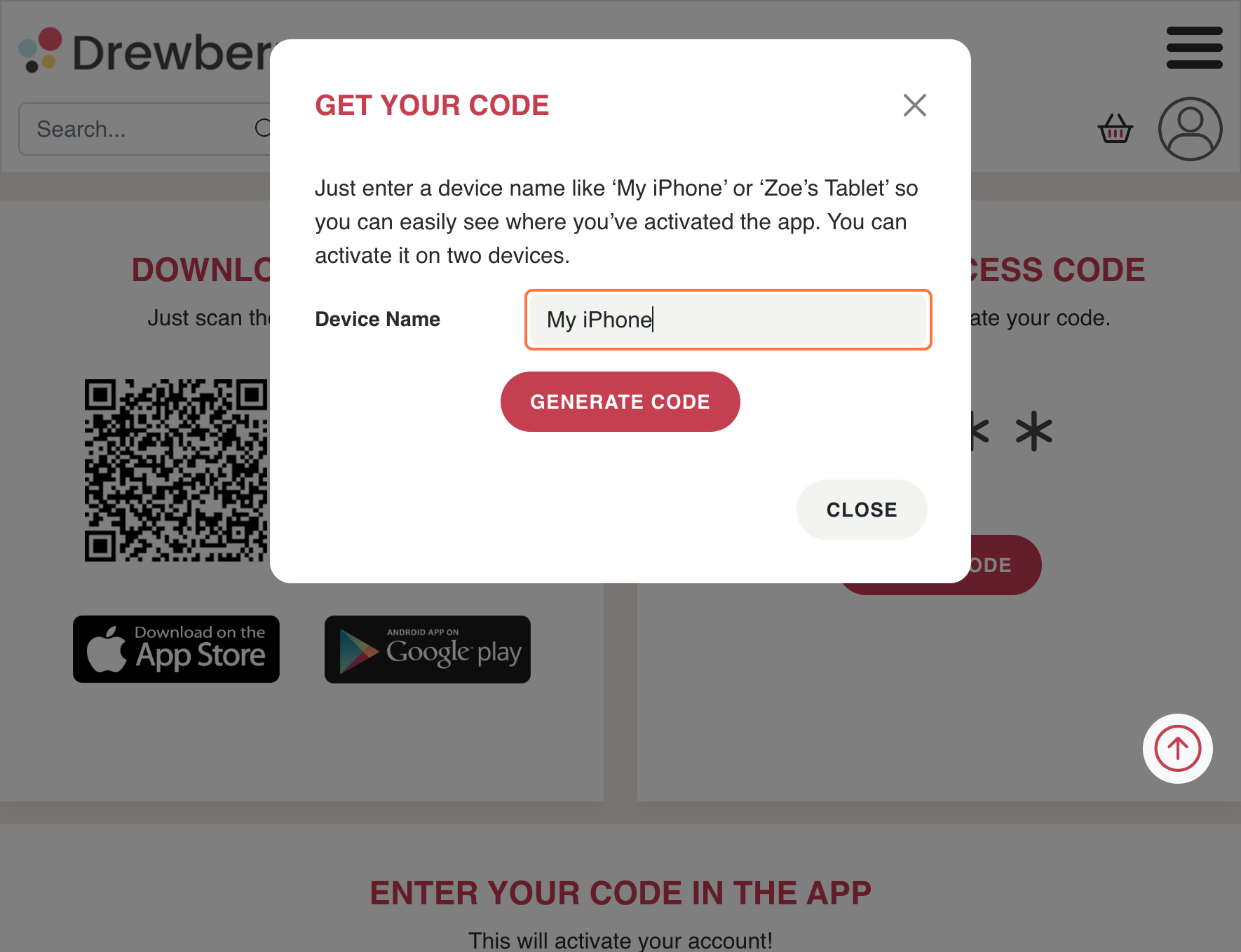
Step 6: Generate Your Code For Your Device
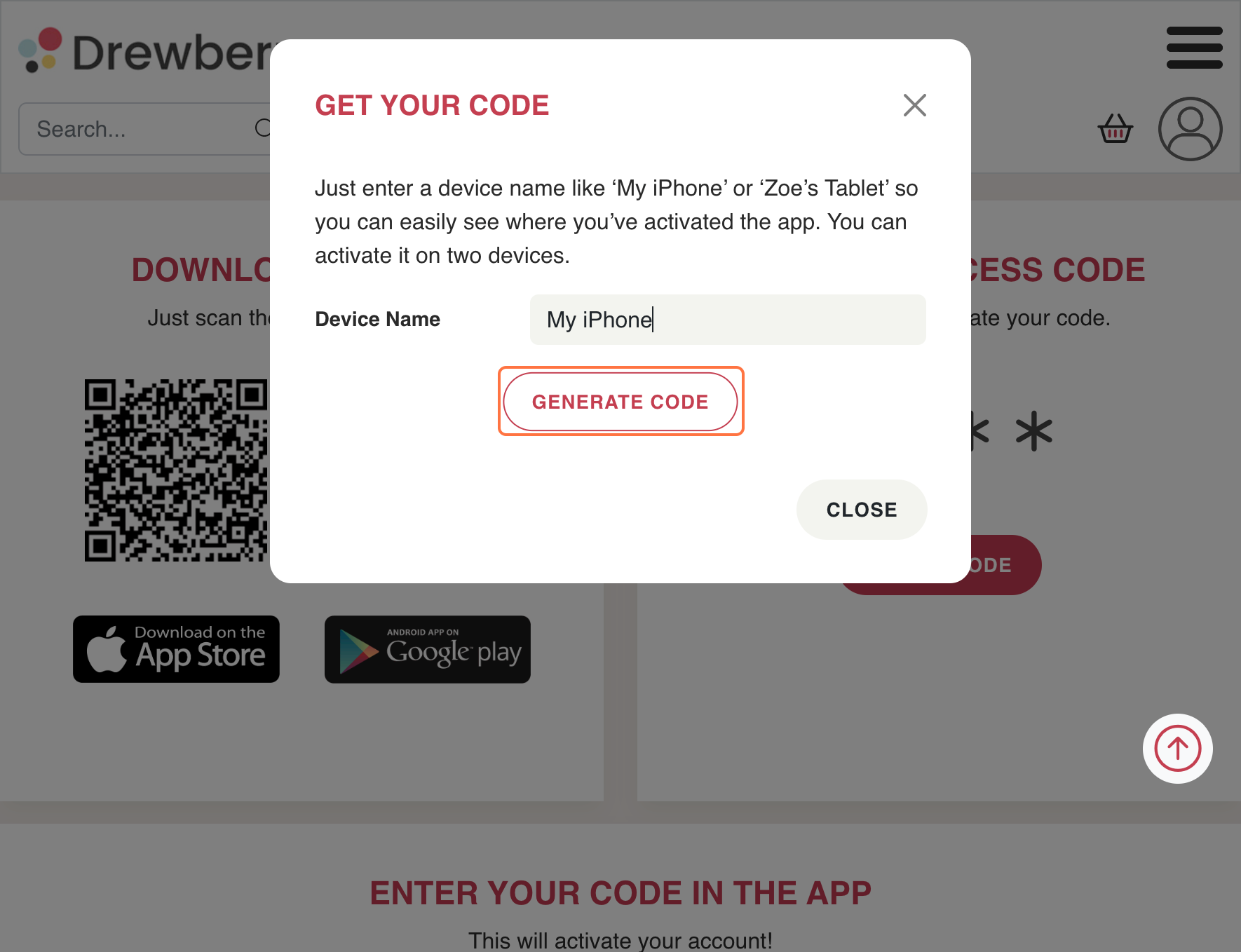
Name your device to identify where you have downloaded the app. E.g. “My iPhone”.
Then click “Generate Code”. This generates a code you will have to enter on your device.
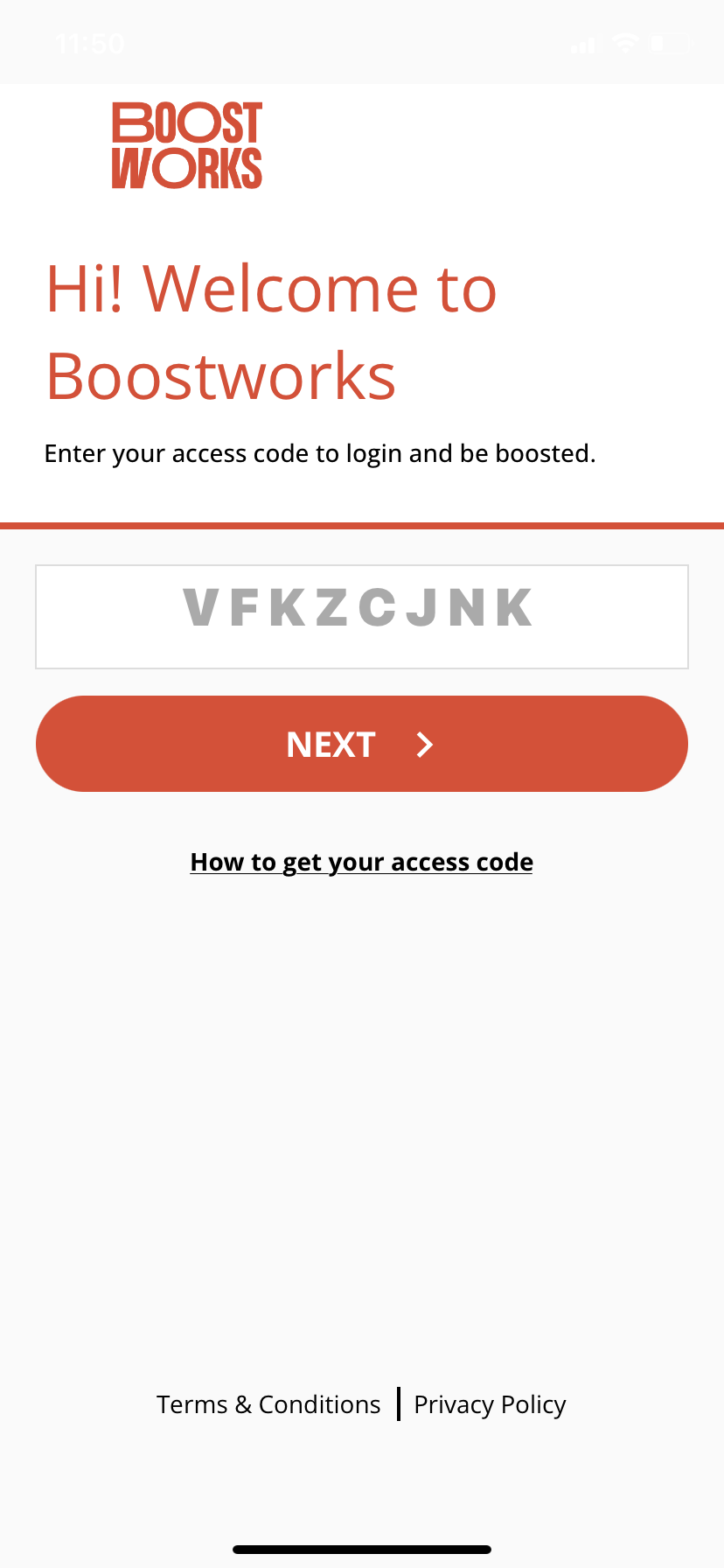
Step 7: Enter Your Code
Enter the code on your device when prompted.
Step 8: Create A Pin
Create a 4-digit pin. Ensure it’s unique yet memorable. You will need this to sign in.

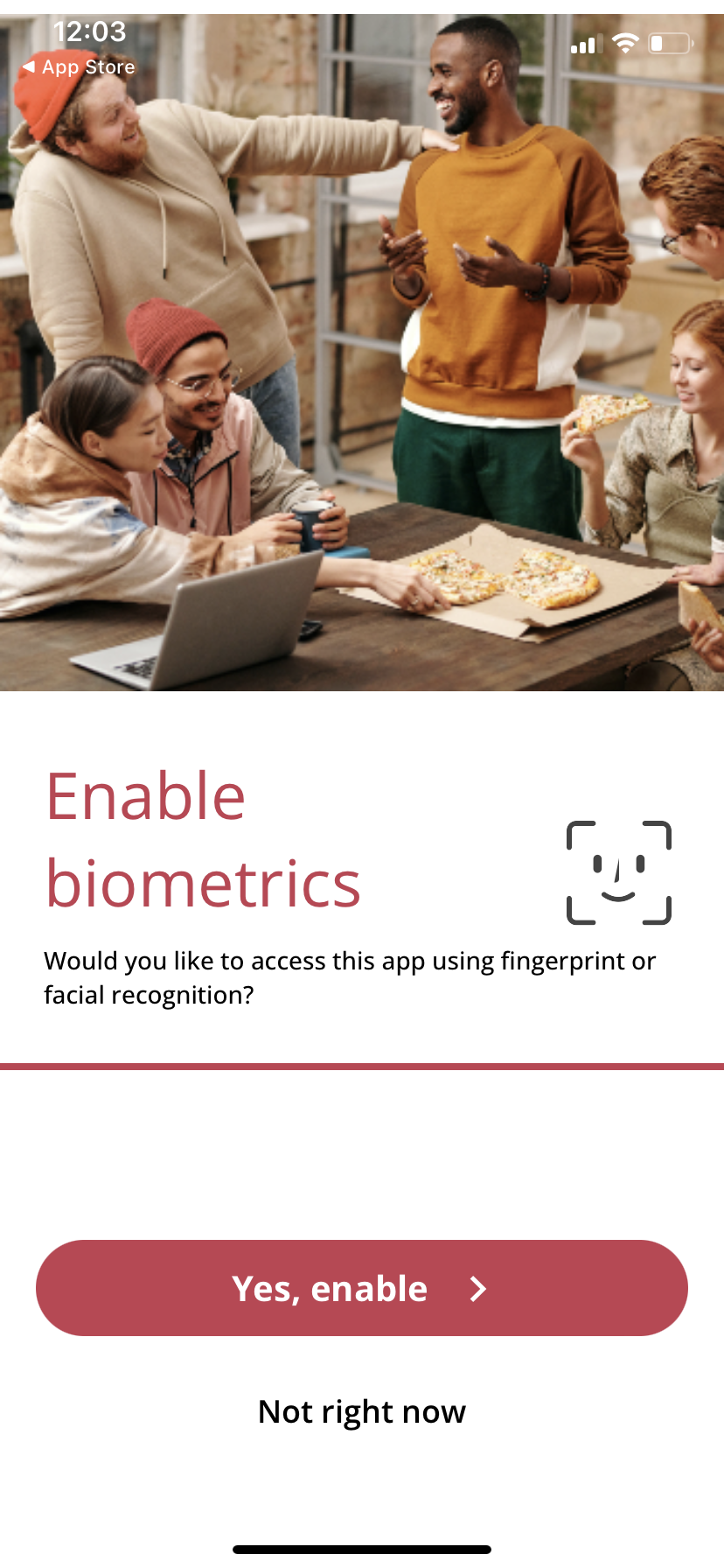
Step 9: Enable Biometrics
Choose whether you want to enable biometric authentication on your device. Use your fingerprint or facial recognition.
Step 10: Start Browsing Your Discounts
And you’re all set up. Your app is ready for you to browse your discounts! 🤩