With the latest update to our Tasks feature, you can now create and assign tasks directly within My.Drewberry, giving you a simple way to manage to-dos, reminders, and employee actions all in one place.
It’s an easy way to stay organised, collaborate with your team, and ensure nothing slips through the cracks.
🤔 How do Tasks Work?
This enhancement brings simple task management to the My.Drewberry platform. You can create, assign, and track tasks related to specific employees and benefits all from within the Admin Centre.
Tasks automatically link to the area they were created from, helping you keep everything in context and easy to find.
See it in action 👇
🔓 How To Access Tasks
To get started:
-
Log in to My.Drewberry.
-
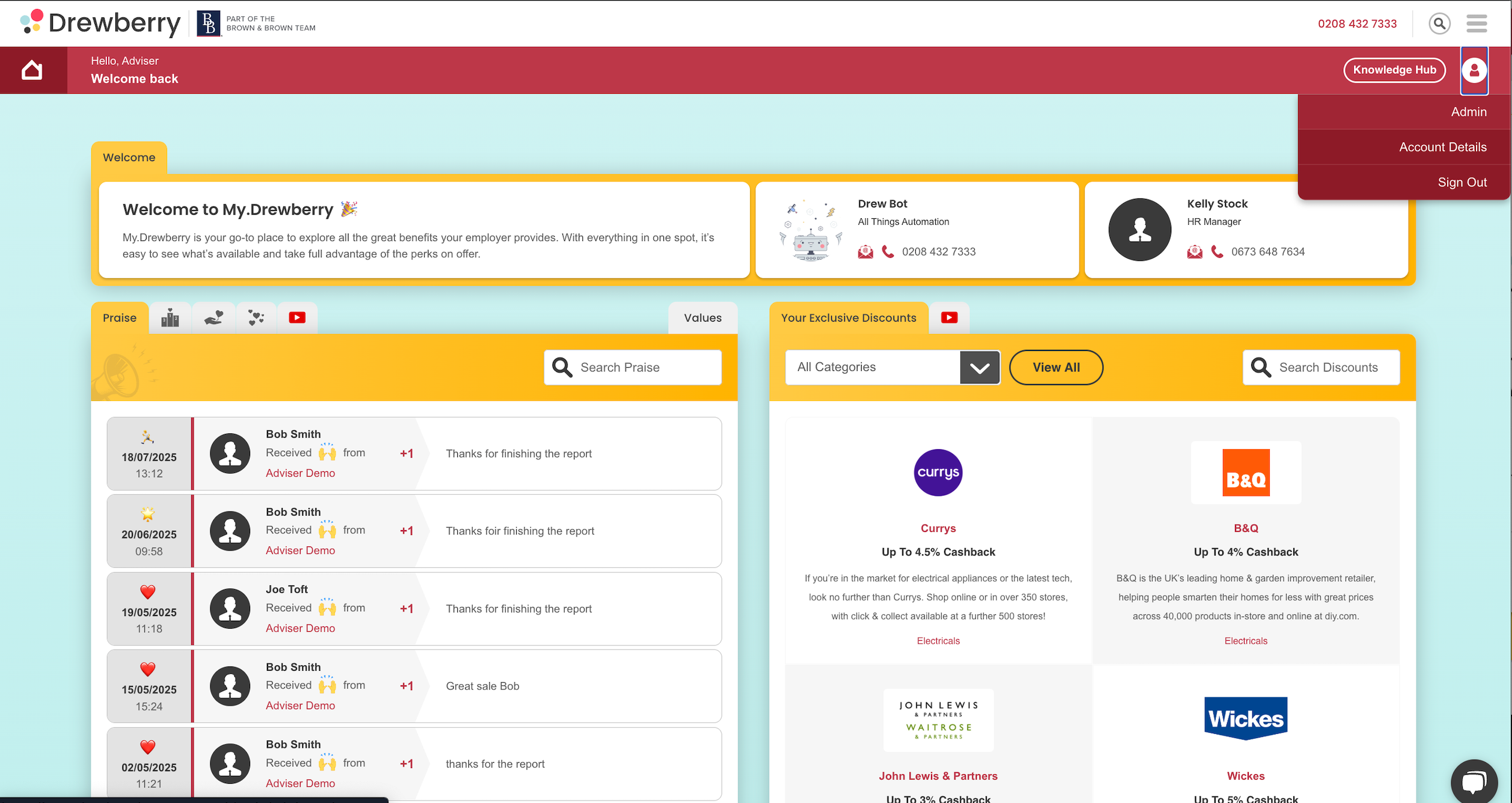
Head to the Admin Centre by clicking your profile icon in the top right.
![]()
-
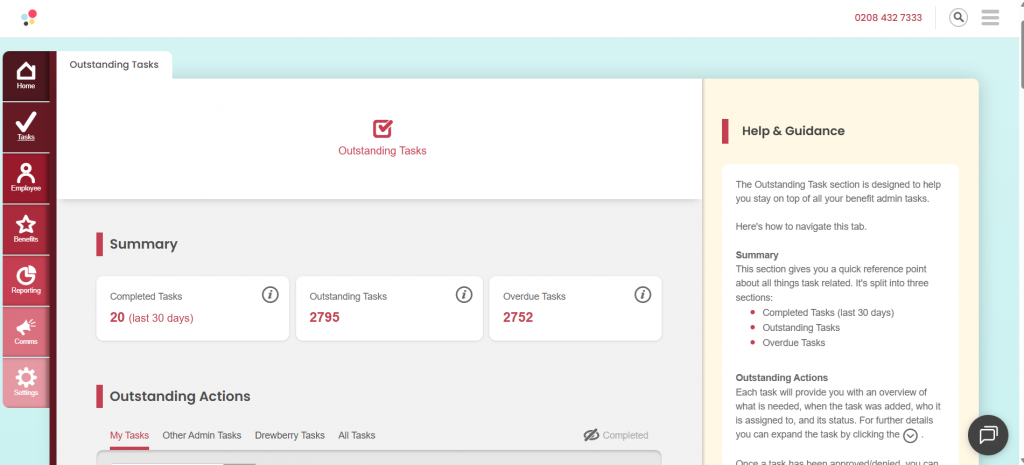
From the left-hand menu, select Tasks.
Here, you’ll see a list of open and completed tasks for your company. You can filter and manage everything from one central location.
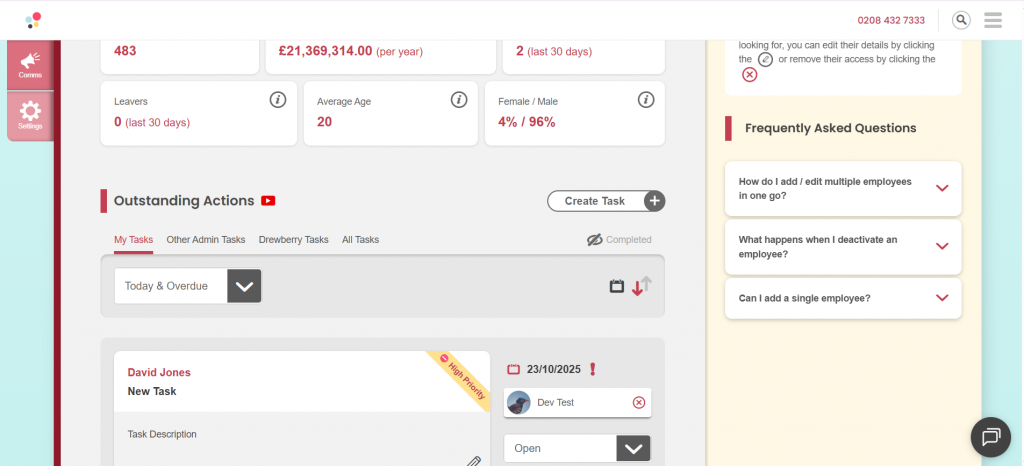
⚙️ Creating Tasks from the Employee Tab
Tasks can be created directly from key areas of the platform, starting with the Employee tab.
-
Navigate to the Employee tab.
-
Scroll to Outstanding Actions.
-
Click Create Task in the top right corner.
3. Find the employee the task relates to by typing in the search bar or selecting from the dropdown.
4. Choose Assign to Me or select another admin from your organisation.
5. Add a Subject, Description, Due Date, and set a Priority (Normal or High).
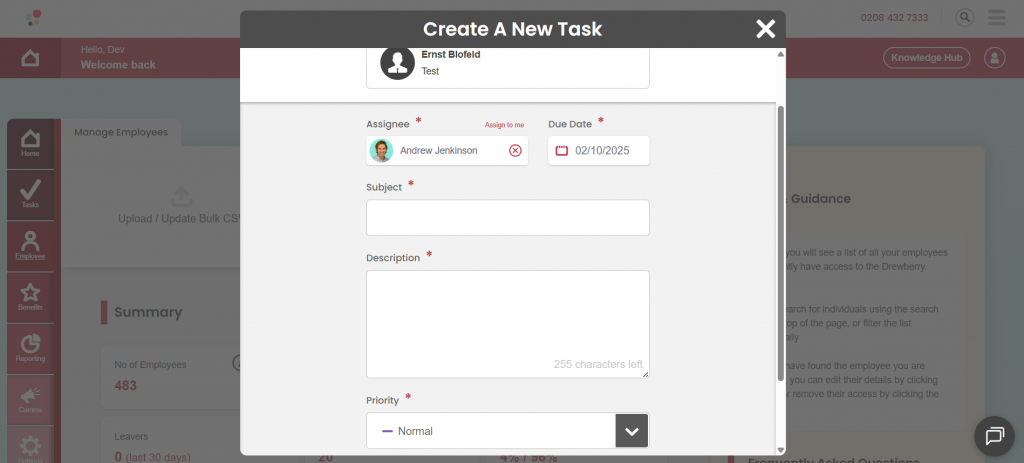
6. Click Create Task, then confirm to save.
Use this section for employee-specific reminders. For example, chasing missing documentation or following up on onboarding steps.
⚙️ Creating Tasks from the Benefits Tab
You can also create tasks directly from the Benefits tab.
-
Go to the Benefits tab.
-
Scroll to Outstanding Actions.
-
Click Create Task and follow the same steps as before.
Any task created here will automatically link to the benefit it relates to, helping you manage actions tied to specific schemes or selections.
📊 Viewing and Tracking Tasks
Once a task is created, it will automatically appear within the Admin Centre in:
-
The Tasks tab – your central list of all open and completed actions.
-
The Employee or Benefit record it was created from.
-
The Payroll and Billing sections of the Reporting tab, if relevant.
From the Tasks tab, you can:
-
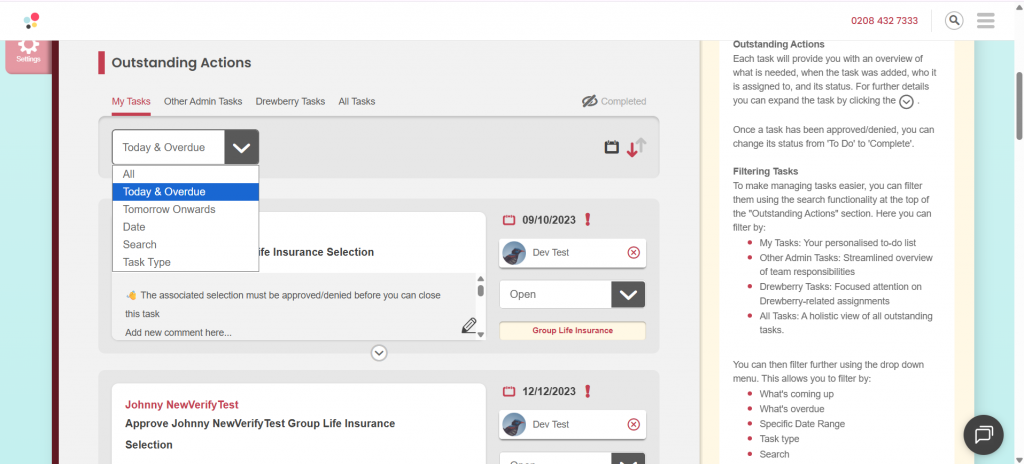
Filter to see what is open and due soon.
-
Use the toggle in the top right to show completed tasks.
-
Spot High Priority or Overdue tasks through visual alerts.
-
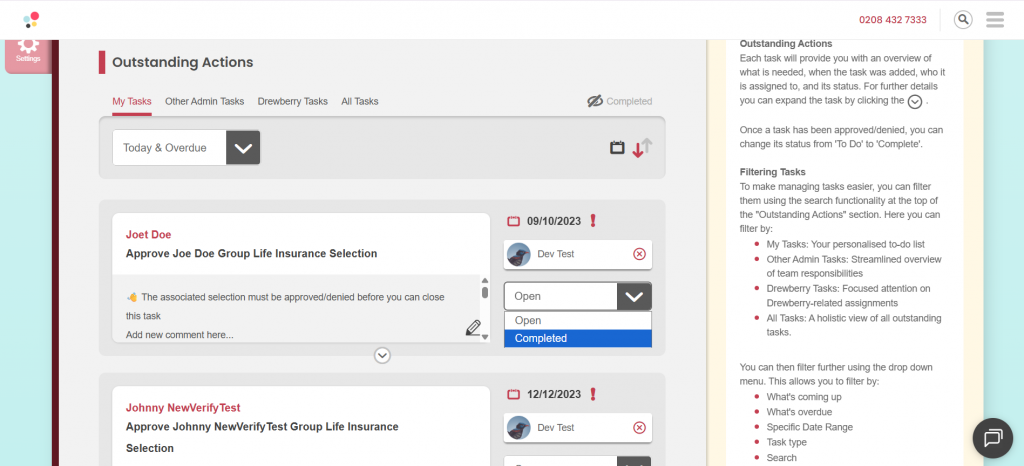
Change a task’s status to Completed when finished.
✅ Why It Matters
This update makes it easy to manage every action directly within My.Drewberry – improving visibility, accountability, and efficiency across your team.