
Holiday Trading lets your employees buy extra annual leave, or sell leave they don’t expect to use, during a set window. The cost or value is spread across their pay over the year as a salary sacrifice.
See it in action 👇
This guide covers what you need to do: getting your data to us, reviewing requests, and passing the result to payroll.
🗓️ Before your window opens
Planning your window
Your trading window dates are set up with your Drewberry adviser. Speak to them about when you’d like it to open and close.
A few things worth knowing before you decide:
- You can run one window per holiday year.
- Selections are paid over 12 months. That means your window runs ahead of the holiday year it applies to, so there’s a full twelve pay periods to spread it across. It isn’t possible to run a window part-way through a holiday year that has already started.
- Leave a gap between the deadline you give employees and the date the window actually closes. That gives you a buffer for any last-minute requests.
- Try not to close on a weekend. Employees get a reminder on the closing date, so the last working day of the month usually works best.
📂 Sending us your employee data
Everything your employees see on their card is built from the data you send us, so this step matters.
Getting your data
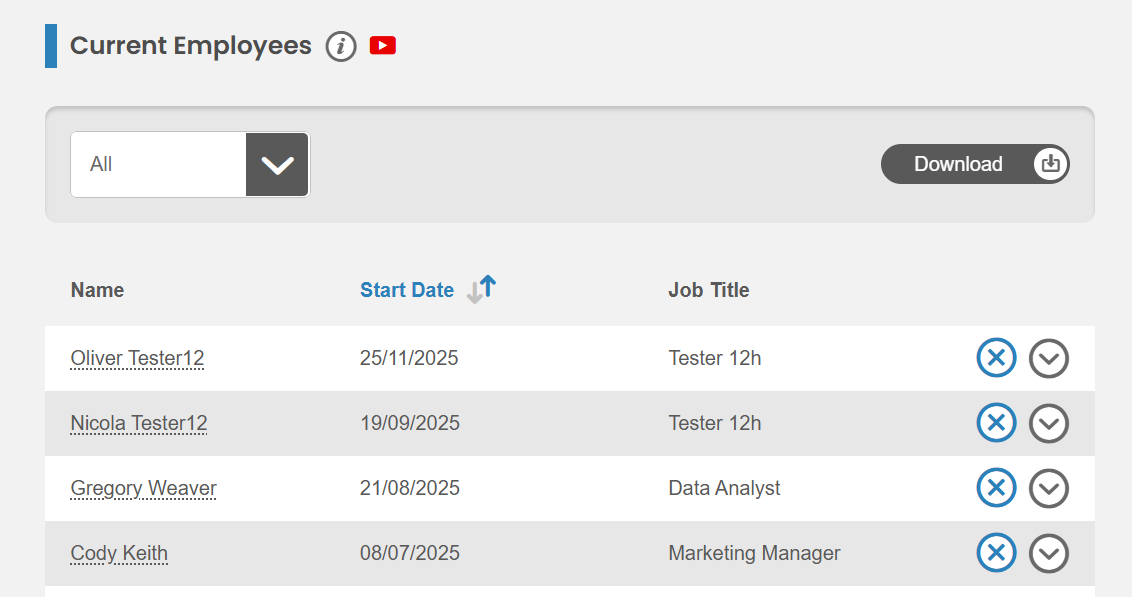
1. Download your current employee data from My.Drewberry by going to the ‘Employee’ section of the Admin centre, scrolling down to ‘Current Employees’ and clicking ‘Download’.
2. Add the Holiday Trading columns below. You can put them anywhere in the file that’s convenient for you.
3. Save the completed file with a password.
4. Send it back to us, confirming your holiday year and trading window dates, and we’ll upload it and open your window
Please ignore the upload button in the platform. Send your file to us and we’ll do the upload for you.
What to add:
| Column | What to put in it |
|---|---|
| Email Address | Already on your downloaded file, so there’s nothing to add. Please don’t change it, as it’s how we match each row to the right person |
| Contracted Weekly Hours | How many hours a week they work |
| Contracted Days Per Week | How many days a week they work |
| Holiday Trading Unit | Whether this person trades in days or hours. It sets what their limits below are measured in, and what they see on their card |
| Holiday Trading Max Buy | The most they can buy, in their unit. Leave it blank or enter 0 and they won’t be offered buying at all |
| Holiday Trading Max Sell | The most they can sell, in their unit. Leave it blank or enter 0 and they won’t be offered selling |
| Holiday Trading Salary | Optional. Leave it blank and we’ll use the salary from your usual data load. Only fill it in if selections should be worked out on a different figure, see below |
Contracted Weekly Hours and Contracted Days Per Week are needed for everyone, full-time and part-time alike. Plenty of employers have more than one full-time working pattern, so we can’t assume a standard week and these two columns are how we work out what a single day of someone’s holiday is worth.
Please don’t leave either of them blank. Without both we can’t price that person’s leave, and they won’t be able to trade at all.
⚠️ Employees who work part time
Anyone who doesn’t work full time trades in hours rather than days, even if they work whole days. Set their Holiday Trading Unit to Hours, and give their Max Buy and Max Sell in hours too.
There’s nothing extra to add to their row beyond that. The columns are the same for everyone.
💷 A note on salary
There’s an optional salary column. Leave it blank and we’ll use the salary we already hold in My.Drewberry.
Fill it in only if you’d like selections worked out on a different figure. A common example is a holiday year running April to March alongside pay rises in April – you may want selections calculated on the new rate rather than the current one. If so, send us the forecast salary with your Holiday Trading data.
This won’t change the main salary we hold for that employee. It’s only used to work out what their selection costs or is worth, based on the figure that applies during the holiday trading year.
📣 Telling your employees
Your employees get a series of messages through your trading window. Holiday Trading: Your Comms Journey shows every one of them in full, in the order they happen, so you know exactly what your people will receive and when.
There’s one message you send yourself. The announcement that your window is open doesn’t come from us, so your employees won’t hear anything until you tell them. You’ll find a suggested template in the pack, written in three versions: one for a buy window, one for a sell window and one for a window offering both. Keep whichever matches yours, fill in the dates and your HR contact, and send it from your own email system.
Everything after that is automatic. Your employees get a countdown on their dashboard, reminders if they haven’t made a selection, a nudge to sign their agreement, and an email once you’ve approved or declined.
🔓 While your window is open
Finding Holiday Trading
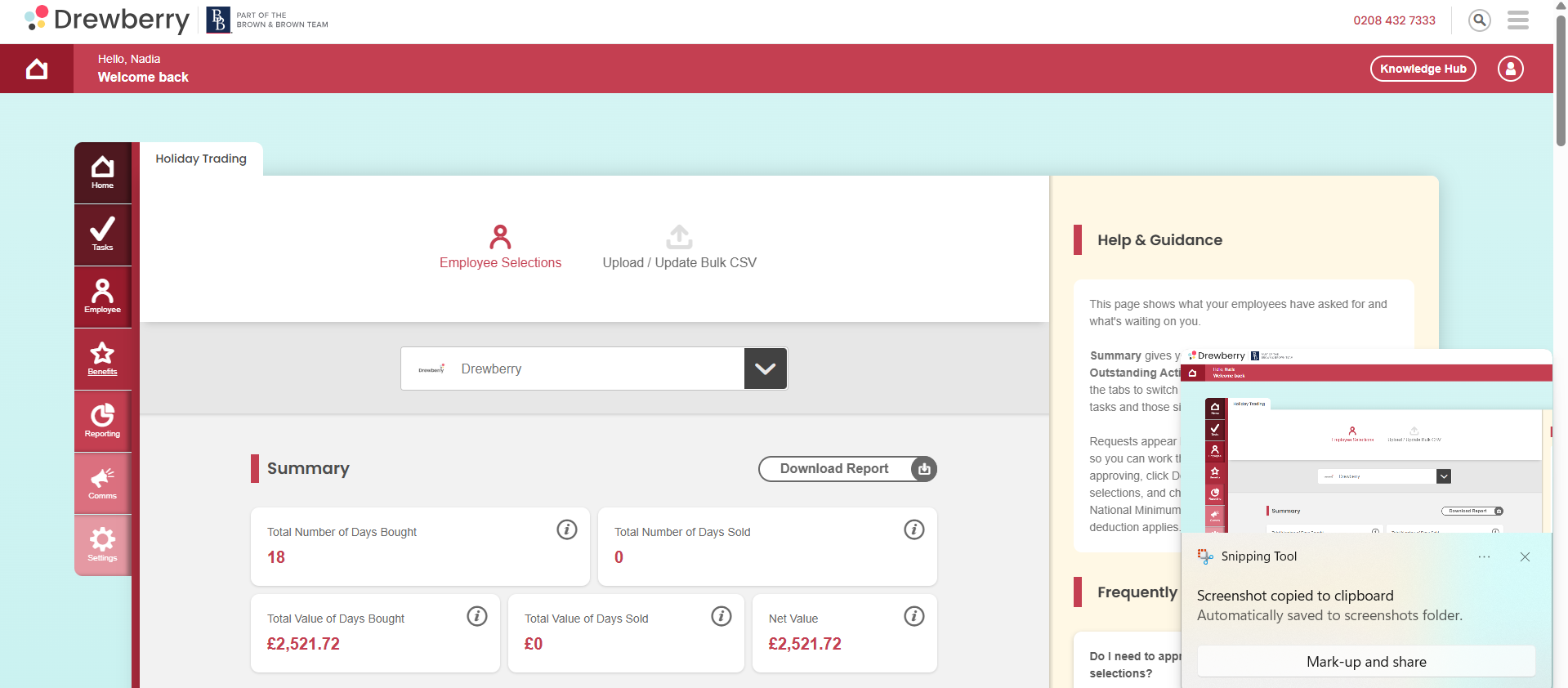
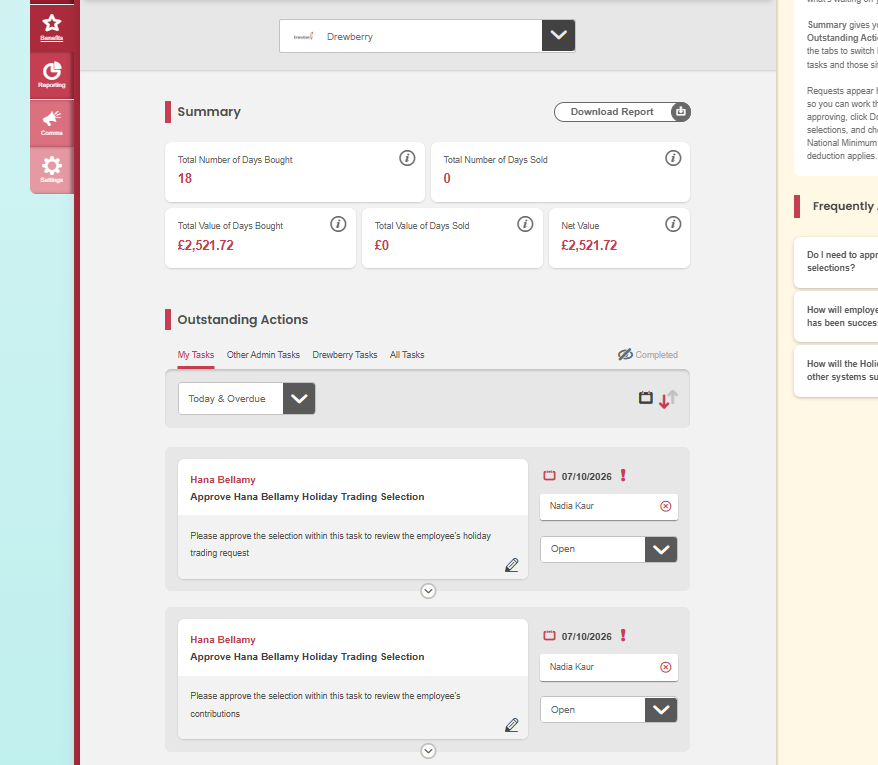
Go to Admin → Benefits → Holiday Trading. Everything you need sits on this page.
The Summary section shows your running totals for the period. Underneath, Outstanding Actions lists everything waiting on you. Use the tabs to switch between your own tasks, other administrators’ tasks, and anything sitting with us.
👀 What your employees see
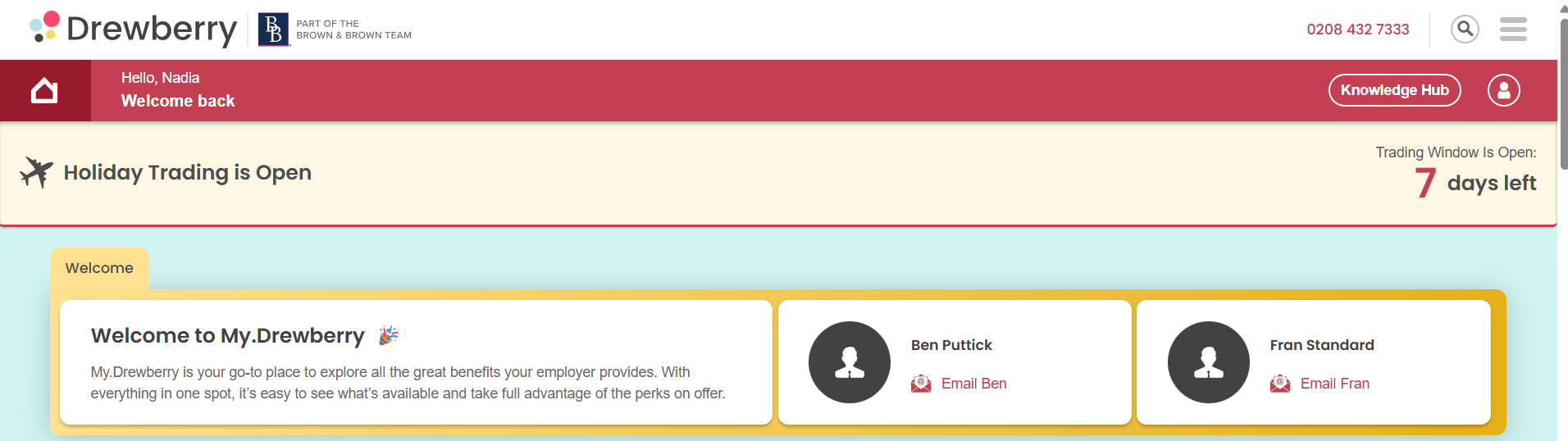
A banner appears at the top of their dashboard telling them Holiday Trading is open, with a countdown of the days left, and their Holiday Trading card shows what’s available to them. It’s all set out in our Employee Guide to Holiday Trading, which you’re welcome to share with your team.
They choose an amount, see what it means for their monthly pay, and sign an agreement. Their request only reaches you once that agreement is signed.

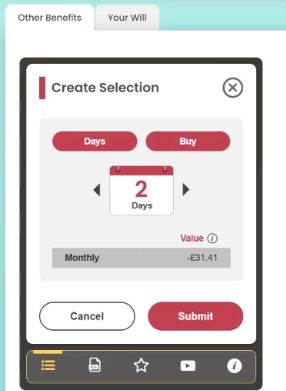
There’s help built into their card too: an information section explaining how it works and what salary sacrifice means, plus a short video walking them through it.
Requests arriving
Requests appear in your Outstanding Actions as soon as employees submit and sign them, so you can work through them as they come in rather than waiting until the window closes.
⚠️ Hold off updating your own holiday records
You can approve requests as they come in, but while your window is still open an employee can change their mind and come back with a different request. If you’ve already updated your own holiday system, you’ll have to undo it.
Wait until your window has closed and everything has been approved before you update your holiday records.
✅ Reviewing and approving
⚠️ Check before you approve
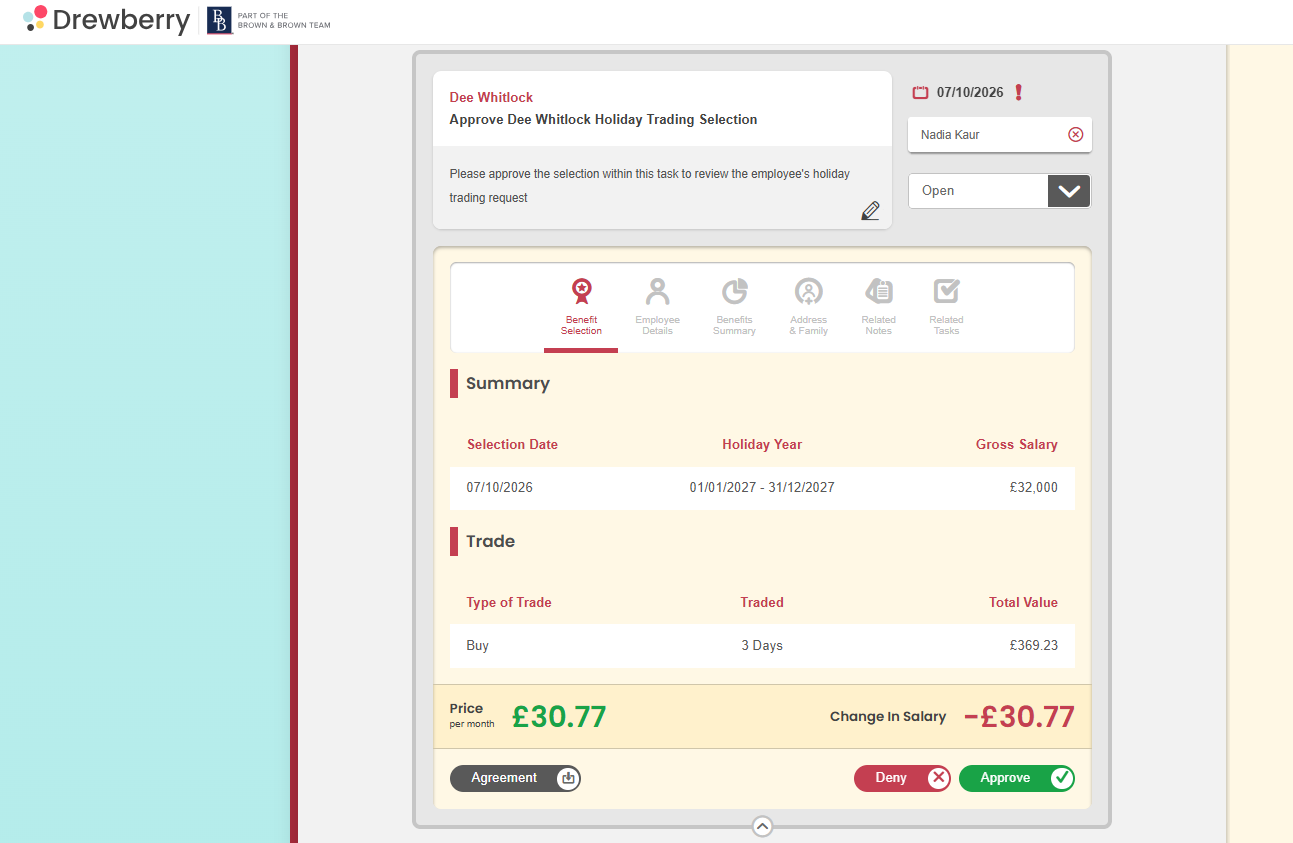
Click Download Report to get every pending selection, showing who has asked for what and the monthly cost to them.
My.Drewberry does not check any of the following for you. Approving a request confirms you’ve made these checks yourself:
- National Minimum and National Living Wage. Buying reduces pay, so check nobody falls below the legal floor once their deduction applies.
- Statutory minimum holiday. Selling reduces leave, so check nobody is left below their statutory minimum. We don’t hold your employees’ total holiday balances, so this isn’t something we can see.
- Any company limits of your own. The platform won’t stop someone exceeding a limit you’ve set internally.
The amounts each person can buy or sell come from the data you send us, so the limits in the platform are the ones you’ve given us.
When you need to approve by
Approvals need to be done the day before your payroll cut-off. Anything still unapproved at cut-off is declined automatically.
Approving or declining
Open a request from Outstanding Actions and approve or decline it. Every request needs a decision from you, nothing goes through automatically.
Your employee is emailed either way. If you decline, they’re told their request wasn’t approved and that nothing will change on their pay or their leave. Your reason isn’t shared with them, so they may come to you to ask.
📁 Where your agreements are kept
Every signed agreement is stored in the platform alongside your other change requests and salary exchange records, so you can find them if you need them later.
🔄 If an employee changes their mind
An employee can only have one request at a time. As long as they haven’t got one waiting for a decision, they can make a new one at any point while your window is open, including after you’ve already approved one. If you approve the new request, it replaces the one before it.
So if someone comes to you wanting to change a request that’s still sitting with you, decline it. That frees them up to make a new one.
If they’d rather not go ahead at all, decline the request they have and leave it there.
If you want to approve a request after the window has closed
There’s no way to edit a request, so:
- Speak to your Implementation Manager to have the window reopened at an agreed time. This is usually no more than a day.
- Your colleague makes a new request for the revised amount.
- Once the task reaches you, let us know and we’ll close the window again.
This isn’t possible once your payroll cut-off has passed. There wouldn’t be a full twelve months of deductions left in the year, and we aren’t able to run different pay periods for different people or groups.
💷 Payroll
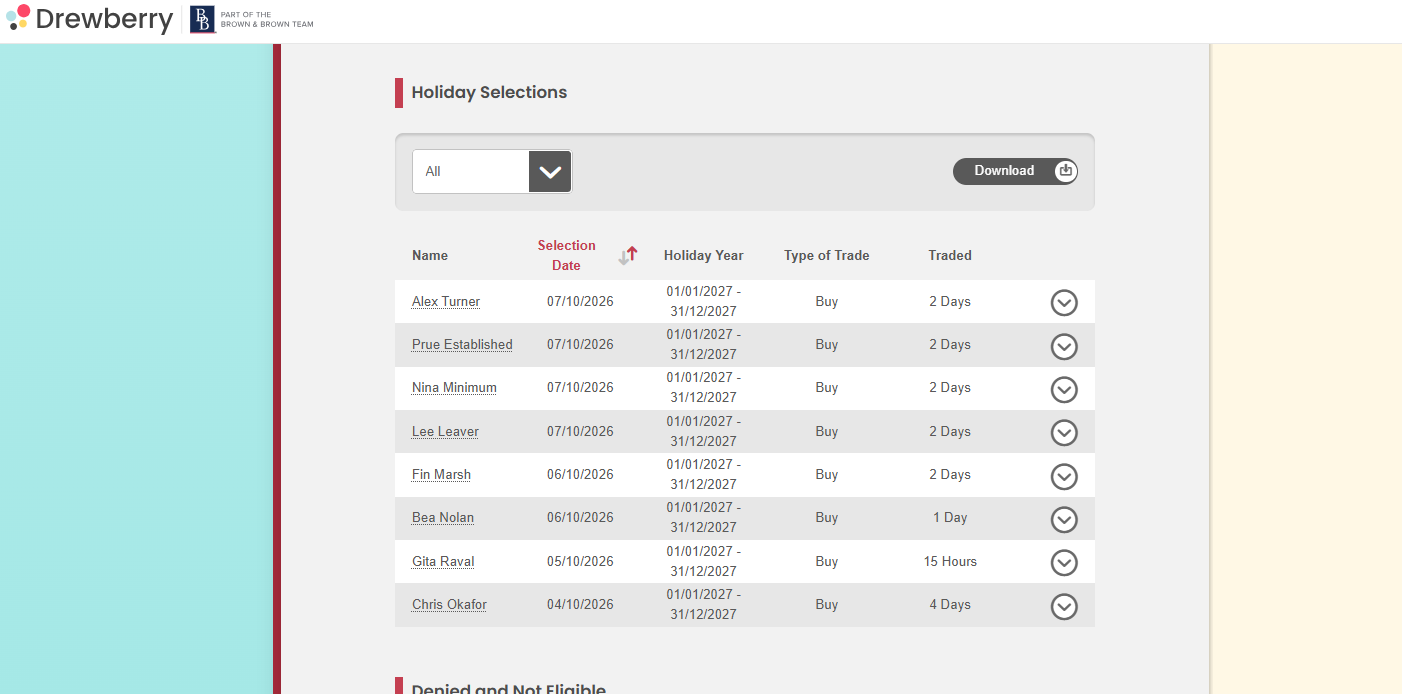
Once you’ve approved requests, download the export from the Holiday Selections table by scrolling down the page and pass it to payroll.
Holiday Trading appears as a salary sacrifice deduction, spread evenly across the year. The amount is fixed at the point of selection and won’t change if an employee’s pay changes later.
Payments start with the first pay period of the holiday year the window applies to.
❓ Common questions
Do I need to approve everything?
Every request needs a decision, but that doesn’t mean everything has to be approved. Approve or decline each one individually.
How will employees know what’s happening?
You announce the window yourself, using the template in Holiday Trading: Your Comms Journey. After that, they see a countdown banner on their dashboard, get reminders if they haven’t made a selection, and are emailed when you approve or decline their request.
What if someone works part time?
They trade in hours rather than days, even if they work whole days. Set their Holiday Trading Unit to Hours and give their limits in hours.
What happens if someone doesn’t sign their agreement?
Their request is cancelled when the window closes and nothing changes on their pay or their leave.
Is there any help for employees going through the process for the first time?
Yes, and it’s built into the platform so you shouldn’t need to walk anyone through it. There’s an information section at the bottom of their Holiday Trading card explaining how it works and what salary sacrifice means, and a short video walking them through making a request from start to finish.
We’ve also written a guide for employees in the Knowledge Hub, which you’re welcome to share when you let your team know the window is opening.
🙋 Need help?
Get in touch with your Drewberry adviser and they’ll be happy to help.