
Holiday Trading lets you change how much annual leave you have for the year. Depending on what your employer offers, you may be able to buy extra holiday, sell holiday you don’t expect to use, or both.
Your employer opens a trading window for a set period. While it’s open, you’ll see a Holiday Trading card on your My.Drewberry dashboard showing what’s available to you.
See it in action 👇
💷 What it costs
If you buy holiday, the cost is spread evenly across your pay over the year, so you’ll see a fixed amount on each payslip rather than paying for it all at once.
If you sell holiday, the value is added to your pay across the year in the same way.
Either way it’s spread over twelve pay periods, and you’ll see exactly what your selection means for your pay before you confirm anything.
⚠️This is a salary sacrifice benefit
That means the amount comes out of your pay before tax, so buying holiday usually costs you less than the full value of the days. You can read more about how salary sacrifice works in the Knowledge Hub.
👀 When you’ll see it in your pay
Payments start with the first pay period of the holiday year your window applies to. So if your holiday year starts in January and your trading window ran in November, the first payment shows on your January payslip.
✏️ Making your request
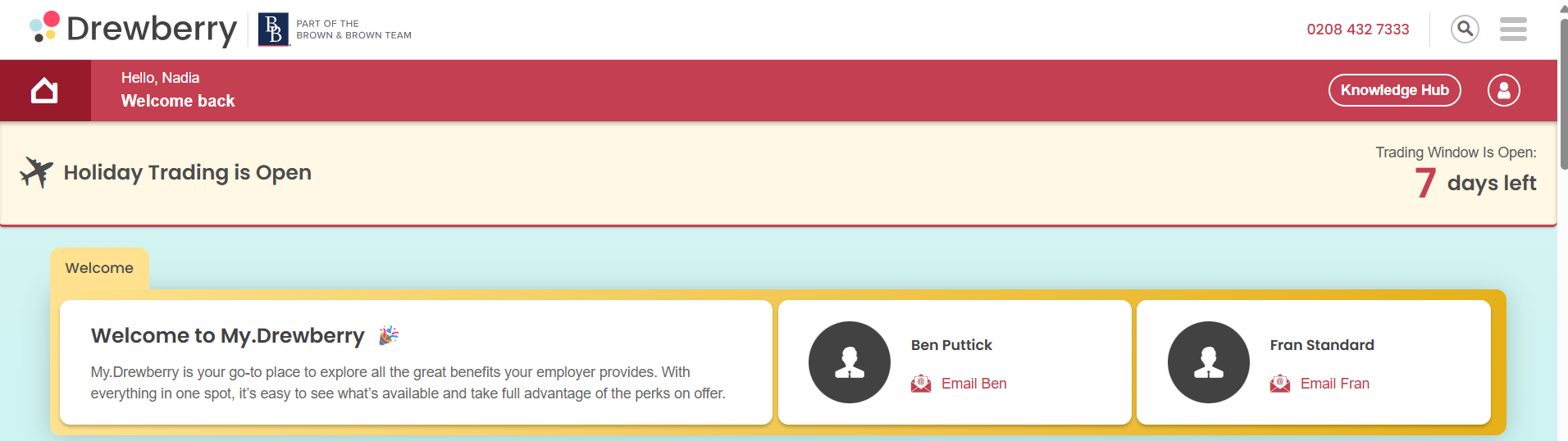
When your window is open, a banner appears at the top of your dashboard with a countdown of the days left.
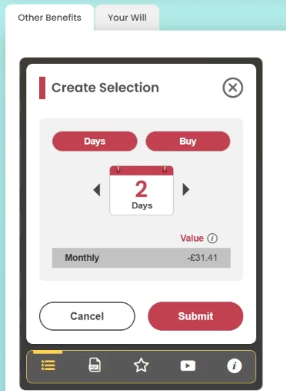
- On your Holiday Trading card (found in ‘Other Benefits’), click the actions icon at the bottom, then Create Selection.
- At the top you’ll see what applies to you: whether you’re trading in days or hours, and whether you’re buying or selling. These are set by your employer, so there’s nothing to choose here.
- Use the arrows to set how much you’d like. You can only pick whole days or whole hours, and you can’t go above the maximum your employer has set for you.
- Check what it means for your pay, then Submit.

You can have one request at a time. If your employer offers both buying and selling, you choose one or the other, not one of each.
If you work part time you’ll trade in hours rather than days, even if you work whole days. Your card will show which applies to you.
✍️ Signing your agreement
This is the step people miss. Your request isn’t finished until your agreement is signed.
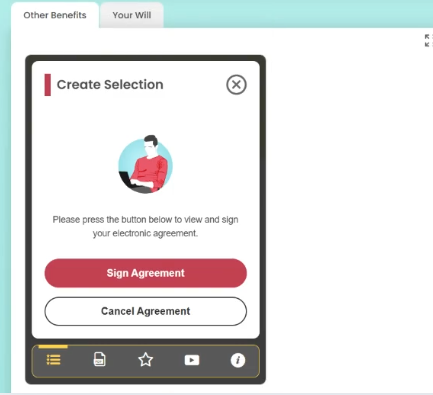
Once you submit, your agreement is created and you’ll be asked to sign it. It sets out what you’ve asked for, what it means for your pay, and over what period. It takes less than a minute.
Until it’s signed, your request won’t go to your employer, and if it’s still unsigned when your window closes, your request is cancelled.
⚠️ Keep an eye out for the signing email. Your agreement is sent through Signwell, the service we use for signing, so it arrives from them rather than from My.Drewberry. If you don’t sign straight away you’ll get a few reminders from the same address. It’s worth checking your junk folder if you’re expecting one and it hasn’t arrived.
⏳ What happens next
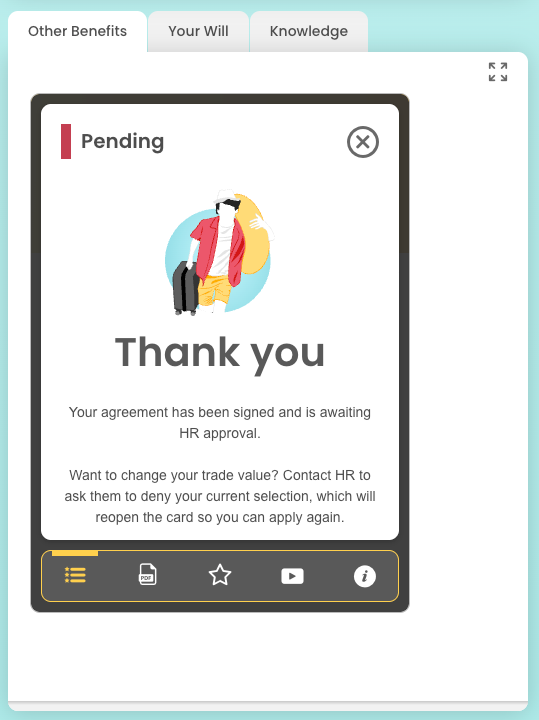
As soon as you’ve signed, we’ll email you to confirm what you’ve asked for. Your card then shows your request as pending while it waits for your employer to approve it.
If it’s approved, your card updates to show what you’ve traded and the amount on each payslip. Extra holiday is added to your allowance and you book it like any other leave. The amount shows on your payslip as a salary sacrifice, and it’s fixed for the year – it won’t change if your pay does. If it isn’t approved, nothing changes on your pay or your leave.
🔄 Changing your mind
Once you’ve signed your agreement you can’t edit it yourself, but you’re not stuck with it. What you do depends on where your request has got to, and either way your window needs to still be open.
If it’s still waiting for a decision
Speak to your HR or admin team and ask them to decline it. That frees you up to make a new selection.
If it’s already been approved
You can go ahead and make a new request. If that one is approved too, it replaces the one before it.
If you’d rather not go ahead at all
Ask your HR or admin team to decline your request and leave it there. Nothing will change on your pay or your leave.
📩 Emails you’ll get
Your employer will inform you when your trading window opens, telling you what’s available and when it closes.
If you decide to make a request, you’ll get an emal from us once your employer has made a decision, whether your request is approved or not.
❓ Common questions
How much can I buy or sell?
Your employer sets this, and your card shows your maximum.
Why can’t I see the option to sell?
Your employer chooses what to offer. If only one option appears, that’s the only one available to you this time.
Can I buy some holiday and sell some too?
You can have one request at a time, so it’s either buying or selling, not both.
Why am I trading in hours rather than days?
Anyone who doesn’t work full time trades in hours, even if you work whole days. It’s the fairest way to work out what your leave is worth.
When will the money start coming out of, or going into, my pay?
From the first pay period of the holiday year your window applies to, however far in advance your employer ran it.
What happens if I don’t sign my agreement?
Your request is cancelled when your window closes, and nothing changes on your pay or your leave.
What happens if I miss the window?
You won’t be able to trade until your employer opens the next one. Speak to your employer to learn more.
What does salary sacrifice mean for me?
It’s a way of exchanging part of your pay for a benefit, before tax is taken. Read more about salary sacrifice.
Who do I ask about my own allowance?
Your HR team. They set what’s available to you and make the final decision on requests.
🙋 Need help?
Speak to your HR team, they’ll be able to help with anything specific to your scheme.