
Managing payroll deductions has never been easier. This dedicated section will enable you to oversee and streamline all aspects of payroll deductions from one central location.
Managing the various employee and employer payroll deductions each month can be a massive headache, which is why My.Drewberry has a dedicated section to help streamline this process and make it much easier.
Each month you will receive a payroll run report from My.Drewberry. This will highlight all the different deductions, including type (employee, employer, P11D, Salary Sacrifice), that are needed for the next pay run. The report can be downloaded and then easily uploaded to your payroll system, which will automatically make the required changes for that months payroll.
To make the most of this functionality, we have put together the below guide to show you where you can find this feature and how to use it.
Video Guide: Mastering Payroll Deductions 👇
How To View Payroll Deductions
To view payroll deductions head to your employee admin centre. To do this, once logged in, go to the cog in the top right hand corner and select ‘Admin’.
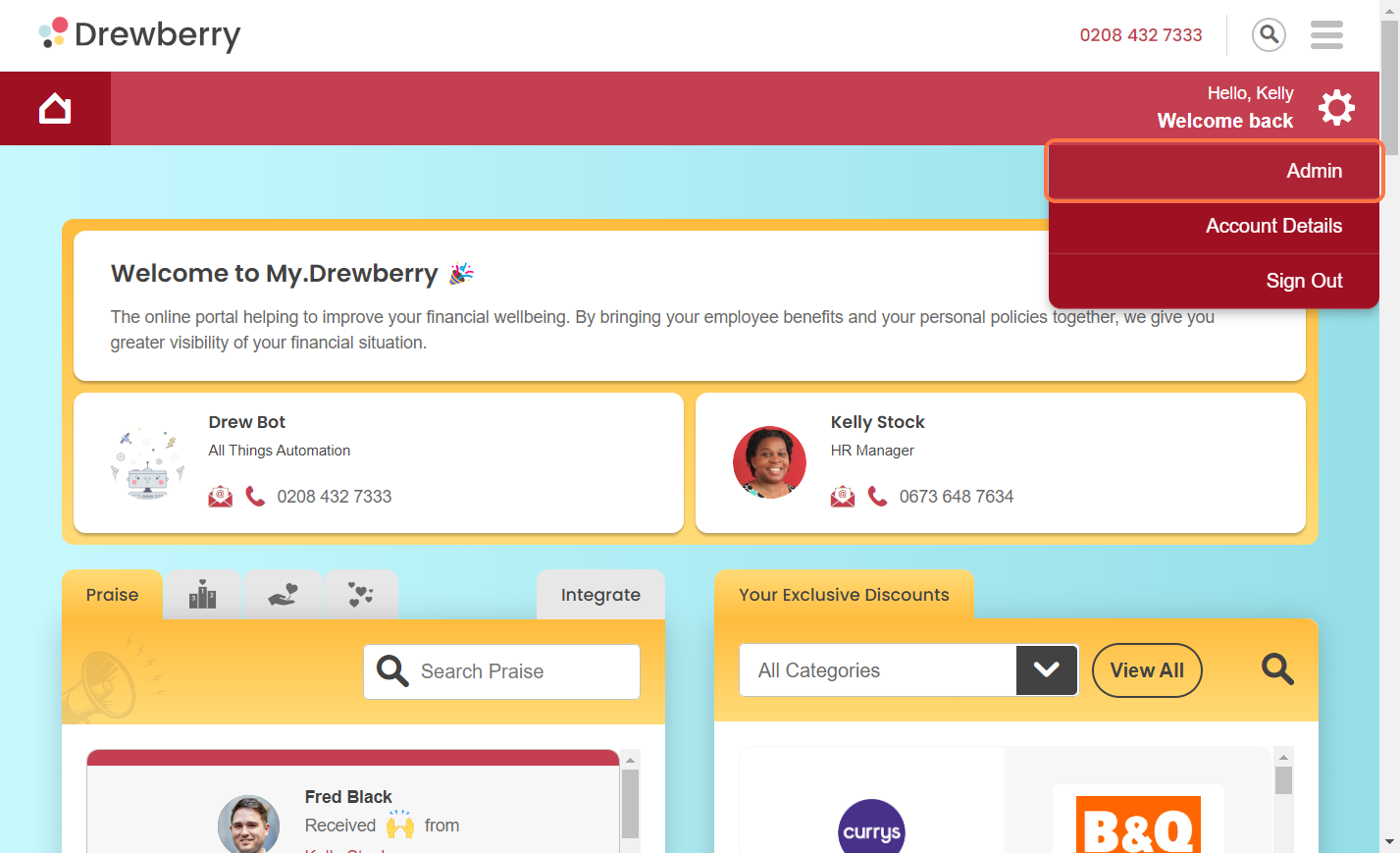
Once in your admin centre, go to the “Reporting” tab on the left hand side and then select the “Payroll Deductions” tab.

Summary
The “Summary” section of the tab gives you a high level overview of a particular payroll report. It will show:
- Payroll Report Name
- Frequency of Payroll
- Payroll Cut Off Date
- Main Contact for Payroll.
What Happens If I Have Multiple Payroll Reports?
If you have more than one payroll report set up (this maybe because you have multiple locations, or different payroll runs for different employees), you can switch between reports using the drop down menu above the summary.

Outstanding Tasks
Within “Outstanding Tasks”, you will be able to track and manage tasks related to payroll deductions. Each task is summarised with key details including the date it was assigned, who it is assigned to, and its current status.
To delve deeper into a payroll run task, simply click the “downward arrow”. This expands the section to reveal a comprehensive list of the deductions for that particular run.


Searching For Payroll Deductions
If you want to search for a particular deduction you can use the drop down arrow at the top of the expanded task.

You will then have the option to search for deductions based on:
- Start Date
- Search
- P11D
- Paid By (employee or employer)
- Deduction Type (gross, net, salary sacrifice- simple/smart).

To get more details about a specific line item on the payroll report you can hover over the “i” icon.

Good To Know 🤓 – Once your payroll reporting is set-up you will receive a notification 3 days before your payroll cut-off date. The email notification will ask you to make sure any outstanding tasks or selections are ready for the payroll reports to be run. It is important to make sure the platform is accurate before the payroll cut-off date. As well as the task in My.Drewberry, you will also receive an email with your payroll report attached. The reports will contain all the deductions during the pay period pro-rated for the time period the employee benefit selection was in force.
Payroll Run
Under the Payroll Run section you can view the history of payroll run periods. To view all the deductions for a payroll period simply click the “downward arrow”. You can also download this information by clicking the “download button” and then upload this csv. to your payroll system.
Like with outstanding actions, payroll runs can be filtered using the drop-down menu and search bar at the top of the section. Within each payroll run, you have the ability to search by:
- Deduction type
- P11D benefits
- Paid by
- Specific date range.