
Holiday Trading lets your employees buy extra annual leave, or sell leave they don’t expect to use, during a window agreed by you. The cost or value is spread across their pay over the year as a salary sacrifice.
See it in action 👇
This guide covers what you need to do: getting your data to us, reviewing requests, and passing the result to payroll.
🗓️ Before your window opens
Agreeing your window
Your trading window dates are set up with your Drewberry adviser. Speak to them about when you’d like it to open and close.
📂 Sending us your employee data
Your adviser will send you a template to complete. Each employee gets a row:
| Column | What it’s for |
|---|---|
| Email address | Identifies the employee |
| Annual Leave Entitlement Hours | Their current allowance |
| Contracted Weekly Hours | Used to work out hourly costs |
| Contracted Days Per Week | Used to work out daily costs |
| Holiday Trading Unit | Whether they trade in days or hours |
| Holiday Trading Max Buy | The most they can buy |
| Holiday Trading Max Sell | The most they can sell |
| Holiday Trading Salary | The salary their costs are calculated from |
Putting a zero in Max Buy or Max Sell means that option isn’t offered to that employee.
Send the completed file back to us and we’ll upload it and open your window. Everything your employees see on their card is built from this data, so it’s worth checking before you send it.
🔓 While your window is open
Finding Holiday Trading
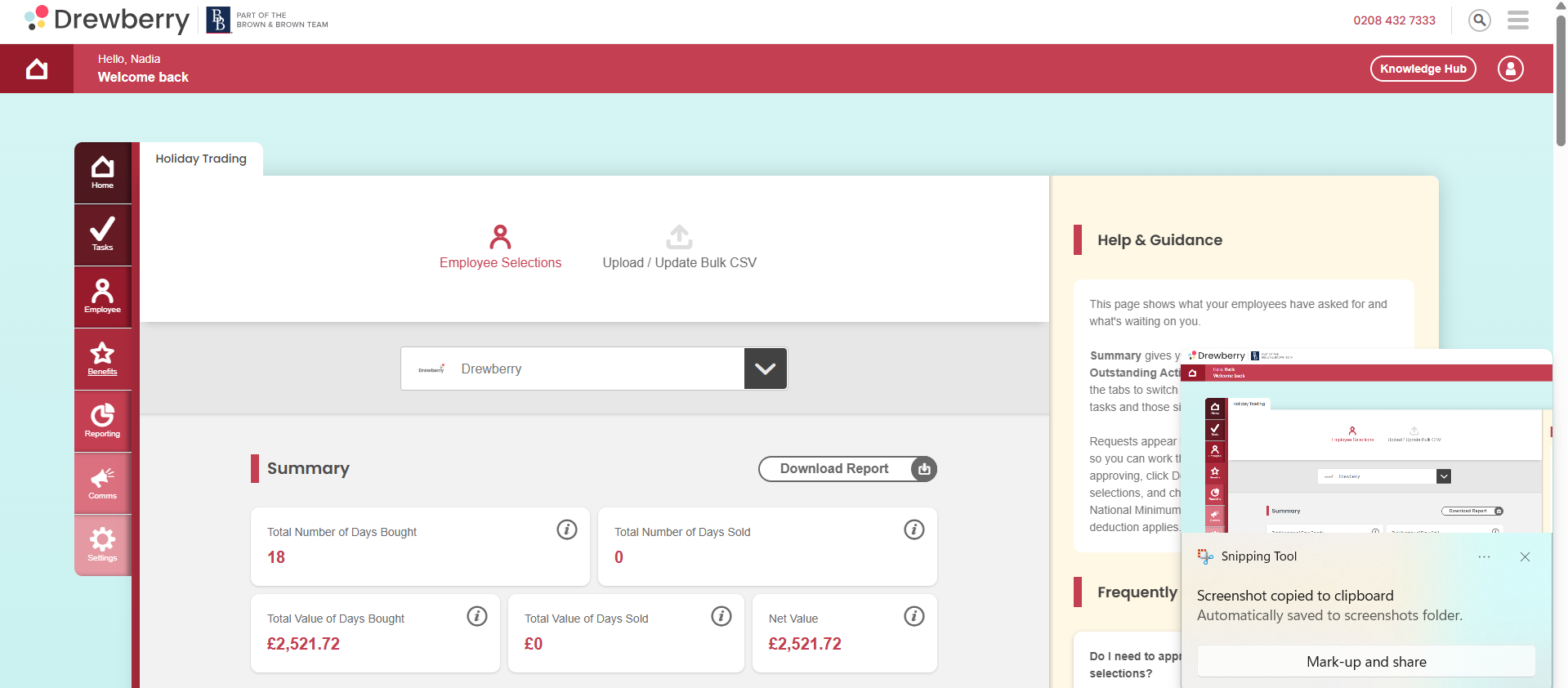
Go to Admin → Benefits → Holiday Trading. Everything you need sits on this page.
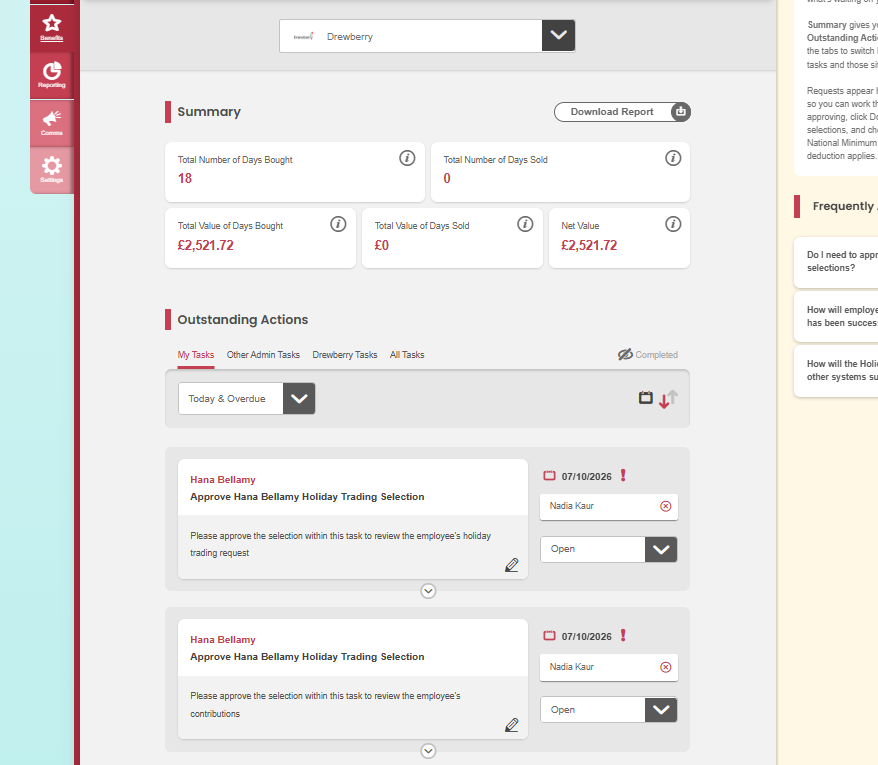
The Summary section shows your running totals for the period. Underneath, Outstanding Actions lists everything waiting on you. Use the tabs to switch between your own tasks, other administrators’ tasks, and anything sitting with us.
👀 What your employees see
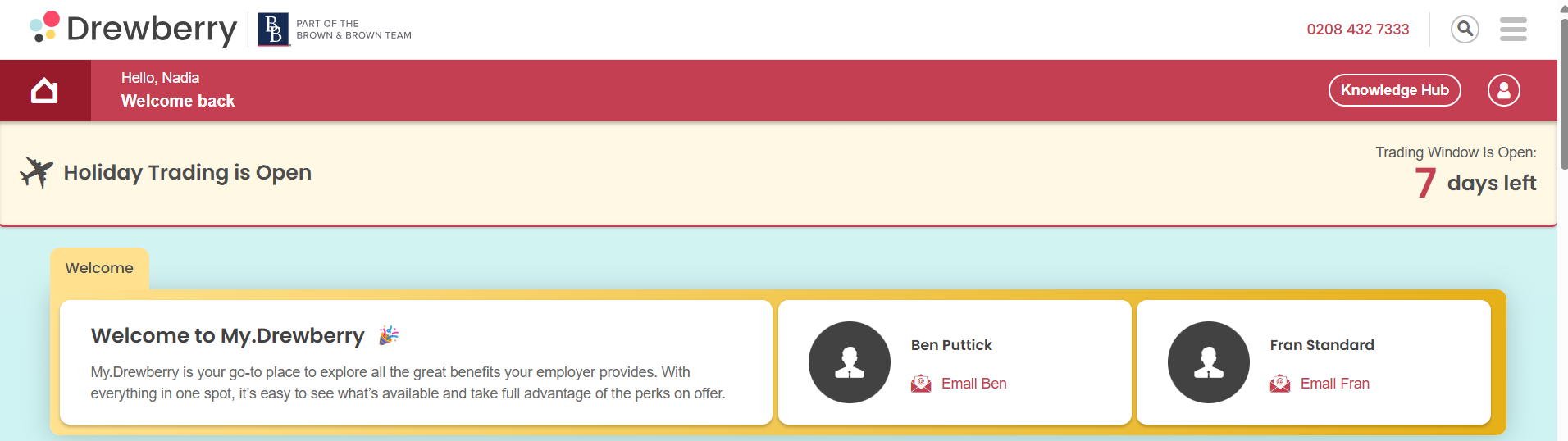
A banner appears at the top of their dashboard telling them Holiday Trading is open, with a countdown of the days left, and their Holiday Trading card shows what’s available to them.
They choose an amount, see what it means for their monthly pay, and sign an agreement. Their request only reaches you once that agreement is signed.

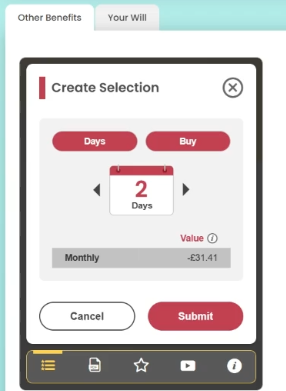
There’s help built into their card too: an information section explaining how it works and what salary sacrifice means, plus a short video walking them through it.
Requests arriving
Requests appear in your Outstanding Actions as soon as employees submit and sign them, so you can work through them as they come in rather than waiting until the window closes.
✅ Reviewing and approving
⚠️ Check before you approve
Click Download Report to get every pending selection, showing who has asked for what and the monthly cost to them.
You’ll need to check that nobody’s pay would fall below National Minimum or National Living Wage once their deduction is applied. The platform doesn’t make this check for you, so please do it before approving.
Approving or declining
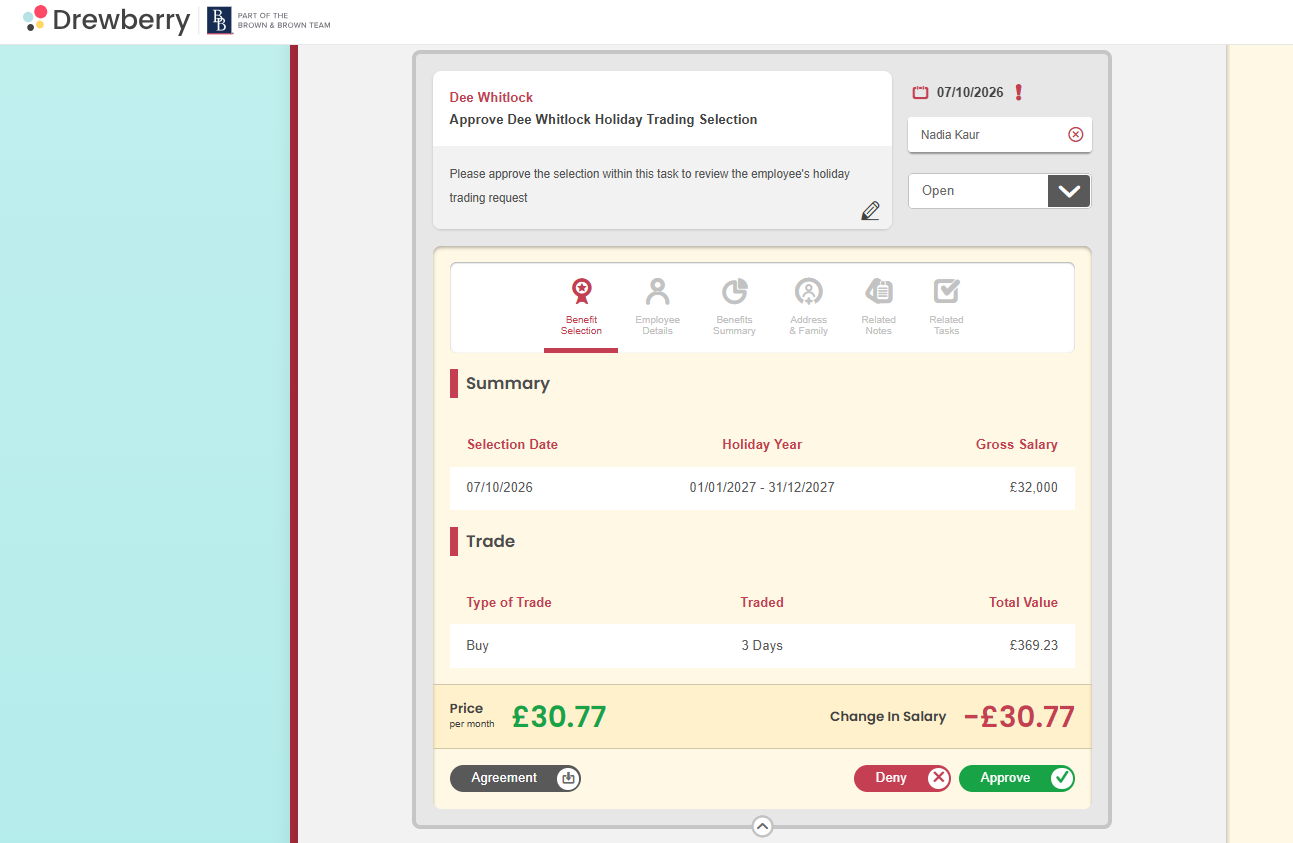
Open a request from Outstanding Actions and approve or decline it. Every request needs a decision from you, nothing goes through automatically.
Your employee is emailed either way. If you decline, they’re told their request wasn’t approved and that nothing will change on their pay or their leave. Your reason isn’t shared with them, so they may come to you to ask.
🔄 If an employee wants to change their request
Once an employee has signed their agreement they can’t change it themselves. If someone asks, decline the request they’ve got. That reopens their card so they can make a new selection, as long as the window is still open.
💷 Payroll
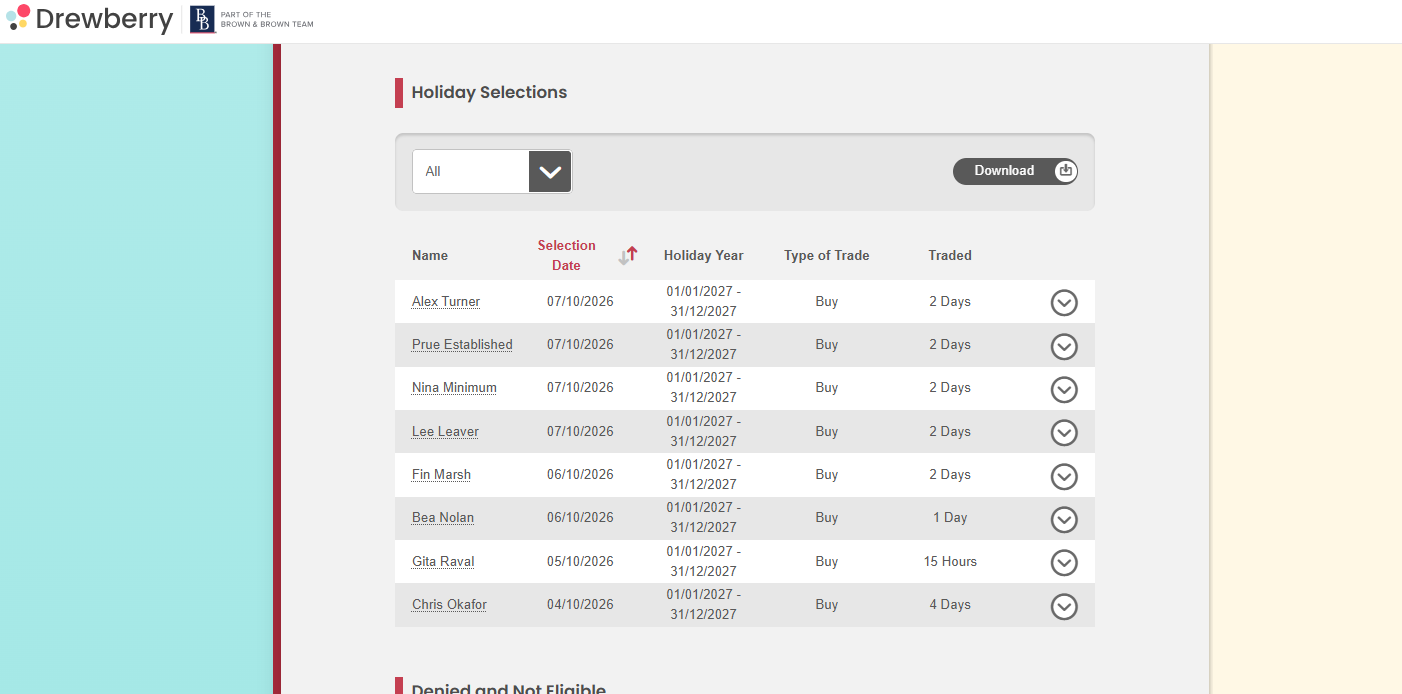
Once you’ve approved requests, download the export from the Holiday Selections table by scrolling down the page and pass it to payroll.
Holiday Trading appears as a salary sacrifice deduction, spread evenly across the year. The amount is fixed at the point of selection and won’t change if an employee’s pay changes later.
❓ Common questions
Do I need to approve everything?
Every request needs a decision, but that doesn’t mean everything has to be approved. Approve or decline each one individually.
How will employees know what’s happening?
They’re emailed when their window opens, and again when you approve or decline their request.
Is there any help for employees going through the process for the first time?
Yes, and it’s built into the platform so you shouldn’t need to walk anyone through it. There’s an information section at the bottom of their Holiday Trading card explaining how it works and what salary sacrifice means, and a short video walking them through making a request from start to finish.
We’ve also written a guide for employees in the Knowledge Hub, which you’re welcome to share when you let your team know the window is opening.
🙋 Need help?
Get in touch with your Drewberry adviser and they’ll be happy to help.